
Getting Started: How to Launch an Email Campaign
Ready to captivate your audience? An email campaign is an excellent way to engage contacts and achieve tangible results. Whether you're promoting services or maintaining brand presence, a well-crafted email can significantly increase conversions. Let's get started on launching your first campaign.
Start With an Email Template
Every effective email campaign begins with a well-designed template. A template serves as the foundation for your messages, allowing you to build compelling content consistently. Let's begin.
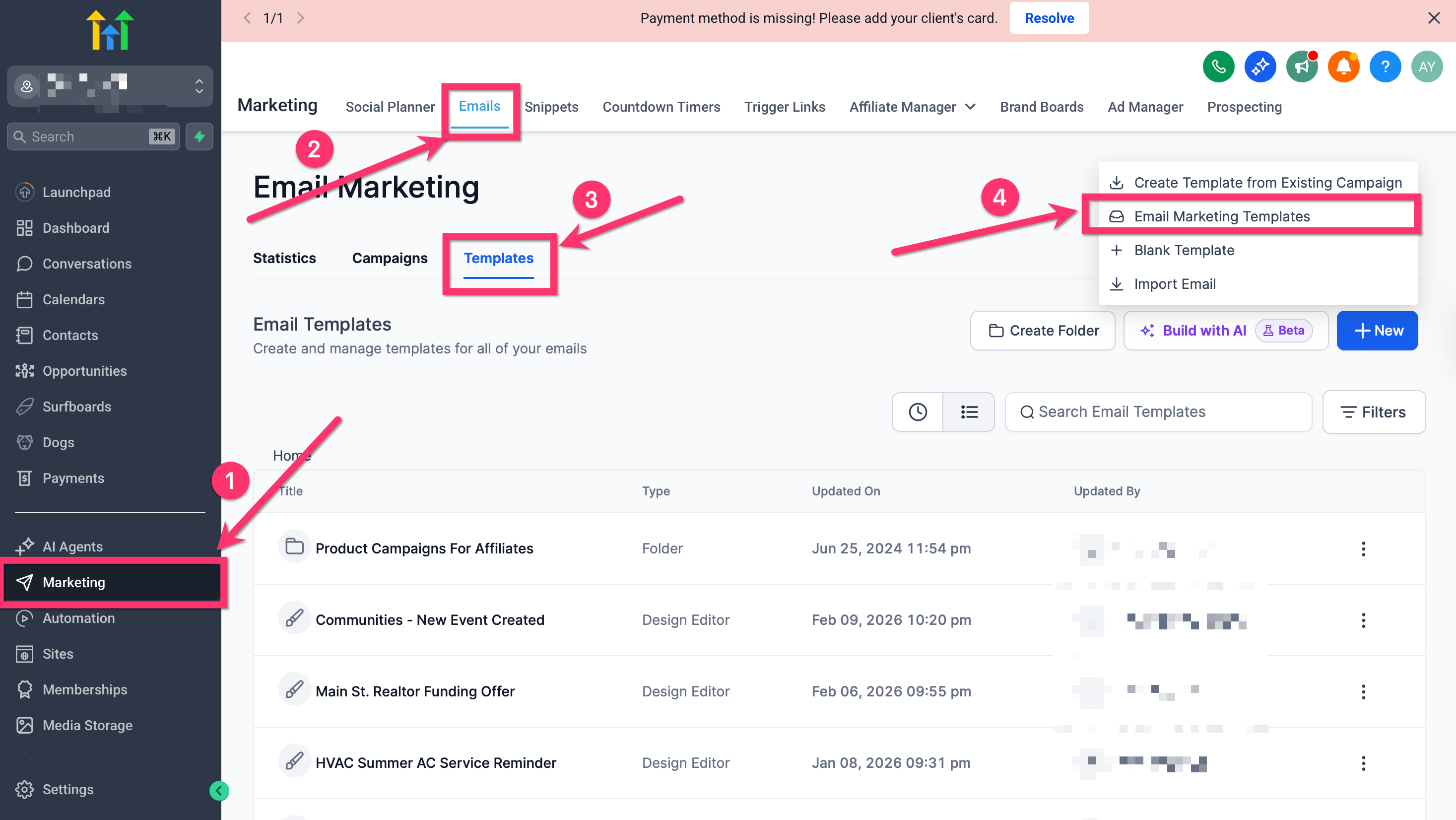
- Navigate to Marketing > Emails.
- Select the Templates tab.
- Click New.
- Choose Email Marketing Templates.
- Browse, search, and filter the available templates to find one that suits your needs.
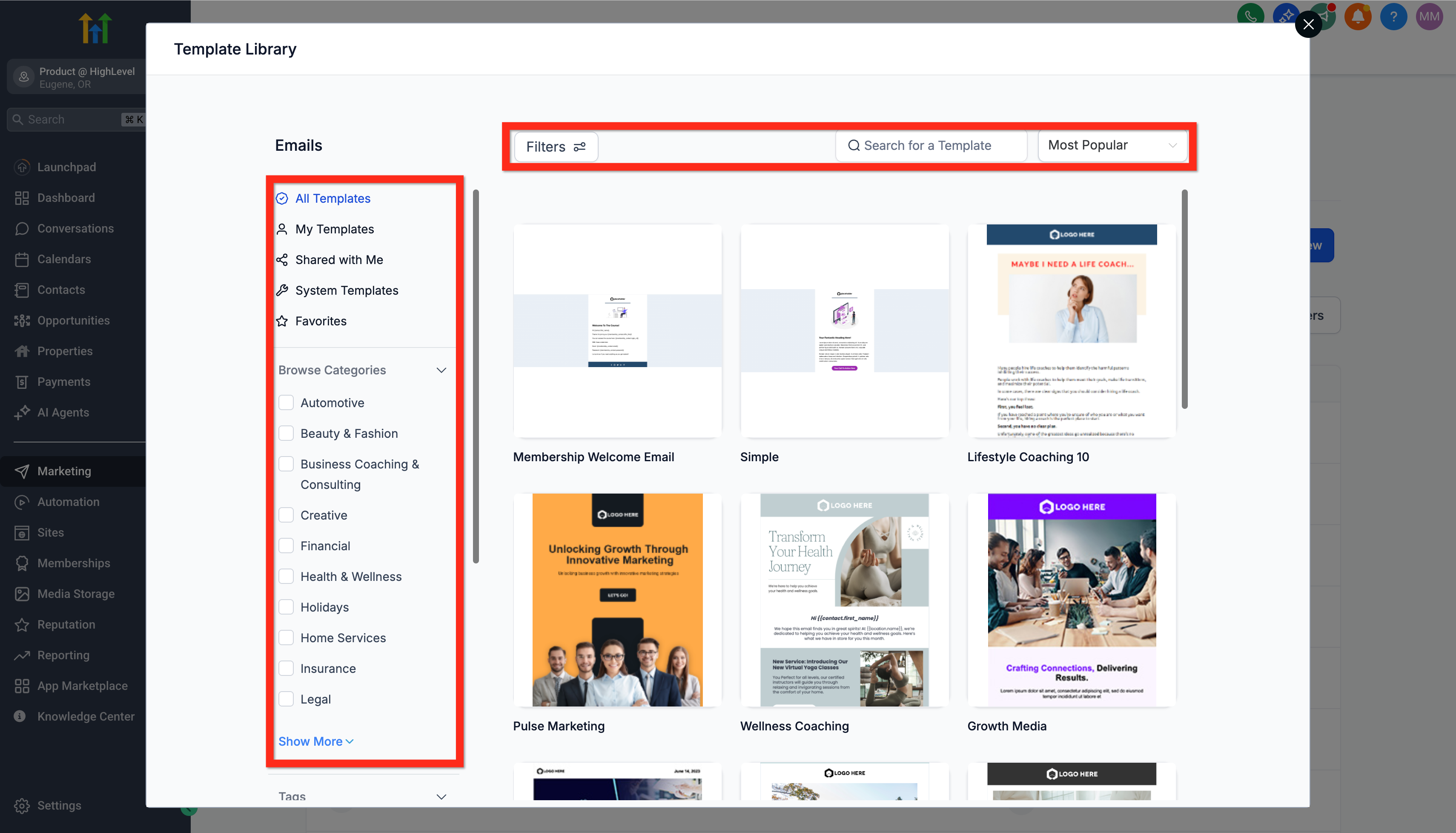
- Preview your chosen template to ensure it aligns with your vision.
- Click Continue to proceed to the Email Editor.
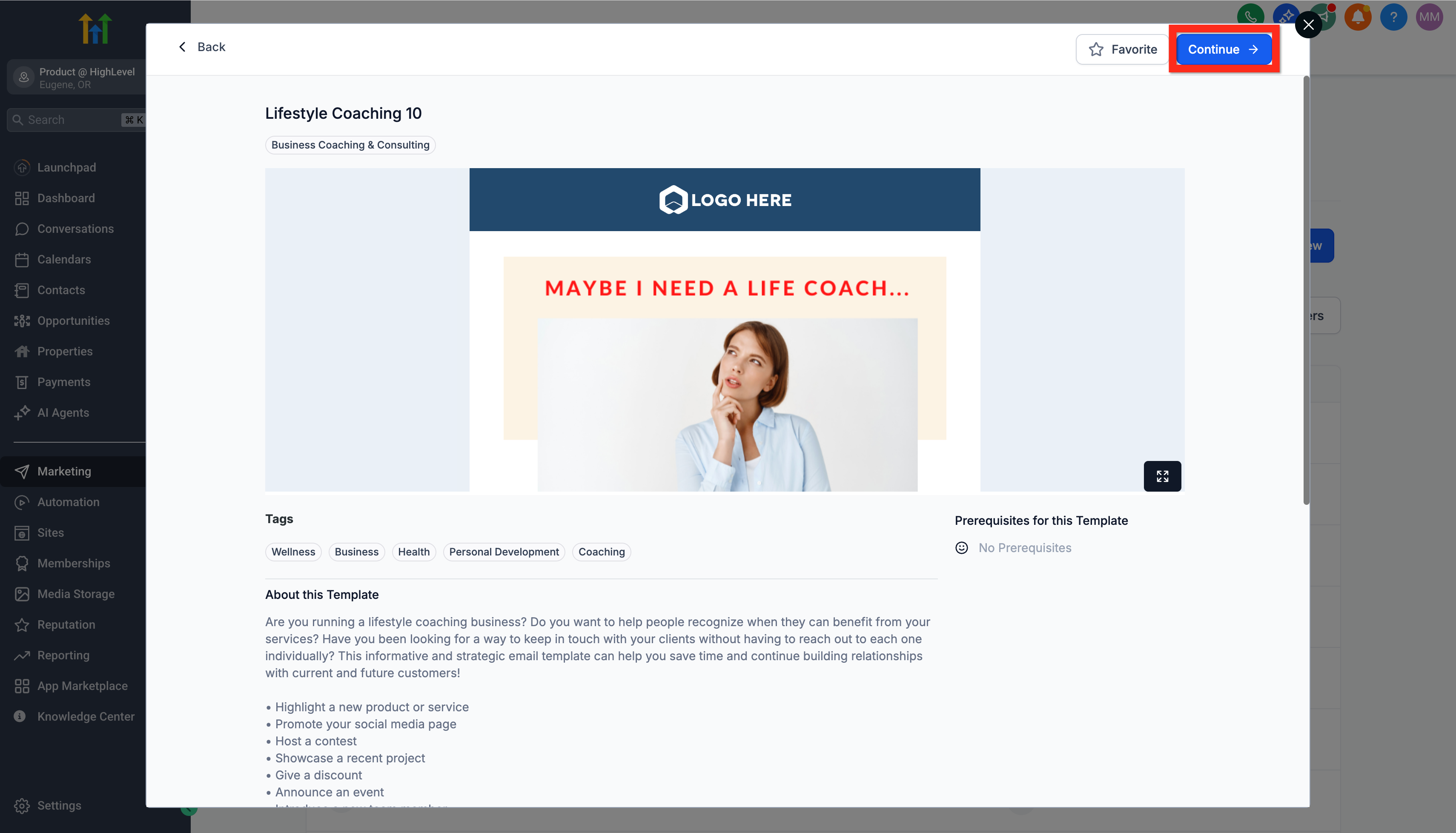
- The system will create the template and open it in the Builder.
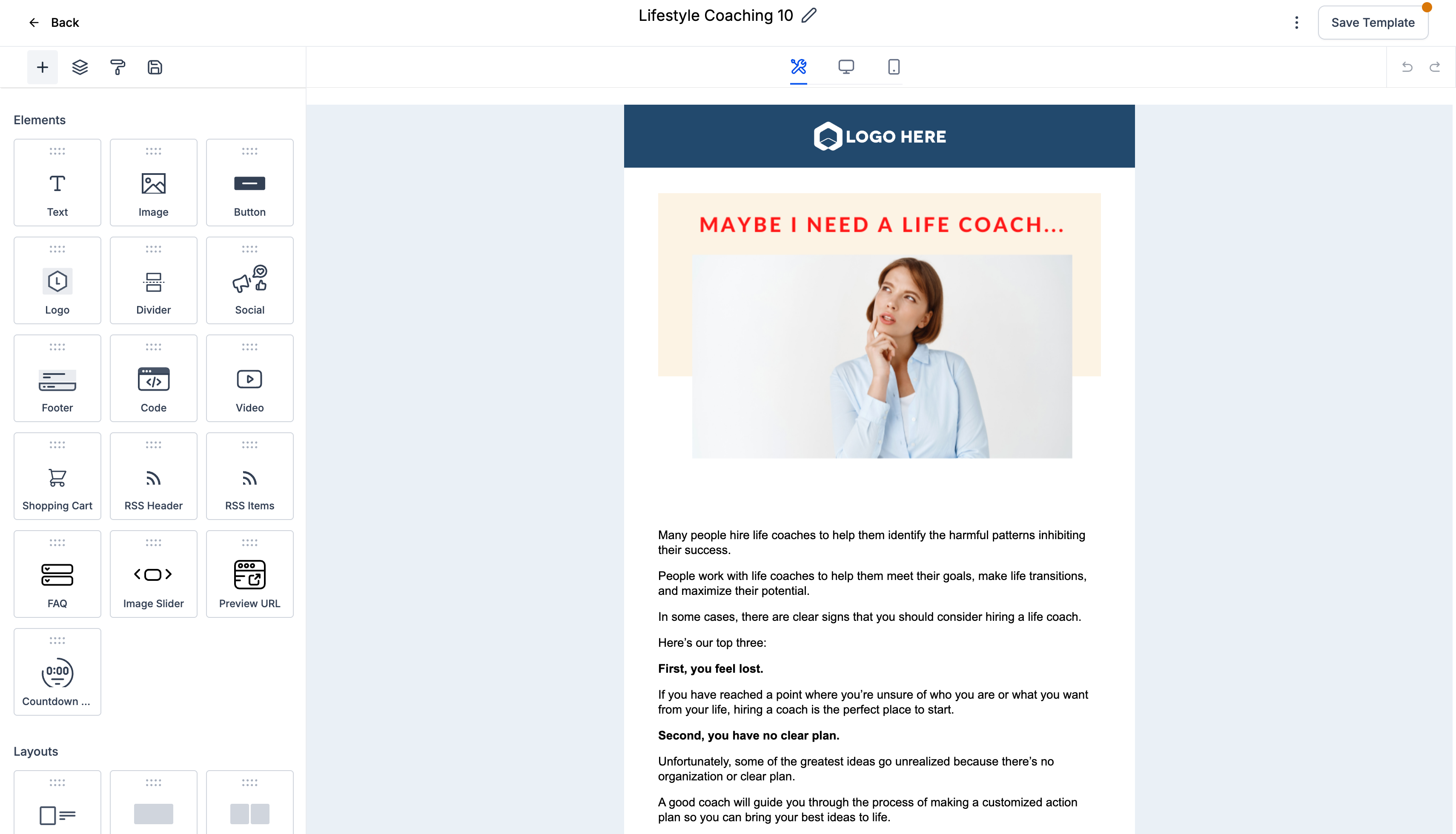
Next, you can begin customizing the template to make it your own.
Editing Your Email Template
Now it's time to customize your template. This step allows you to infuse your brand's voice, style, and visuals to make the design uniquely yours. Let's refine your template.
- Navigate to Marketing > Emails > Templates.
- Open your selected template in the Email Editor.
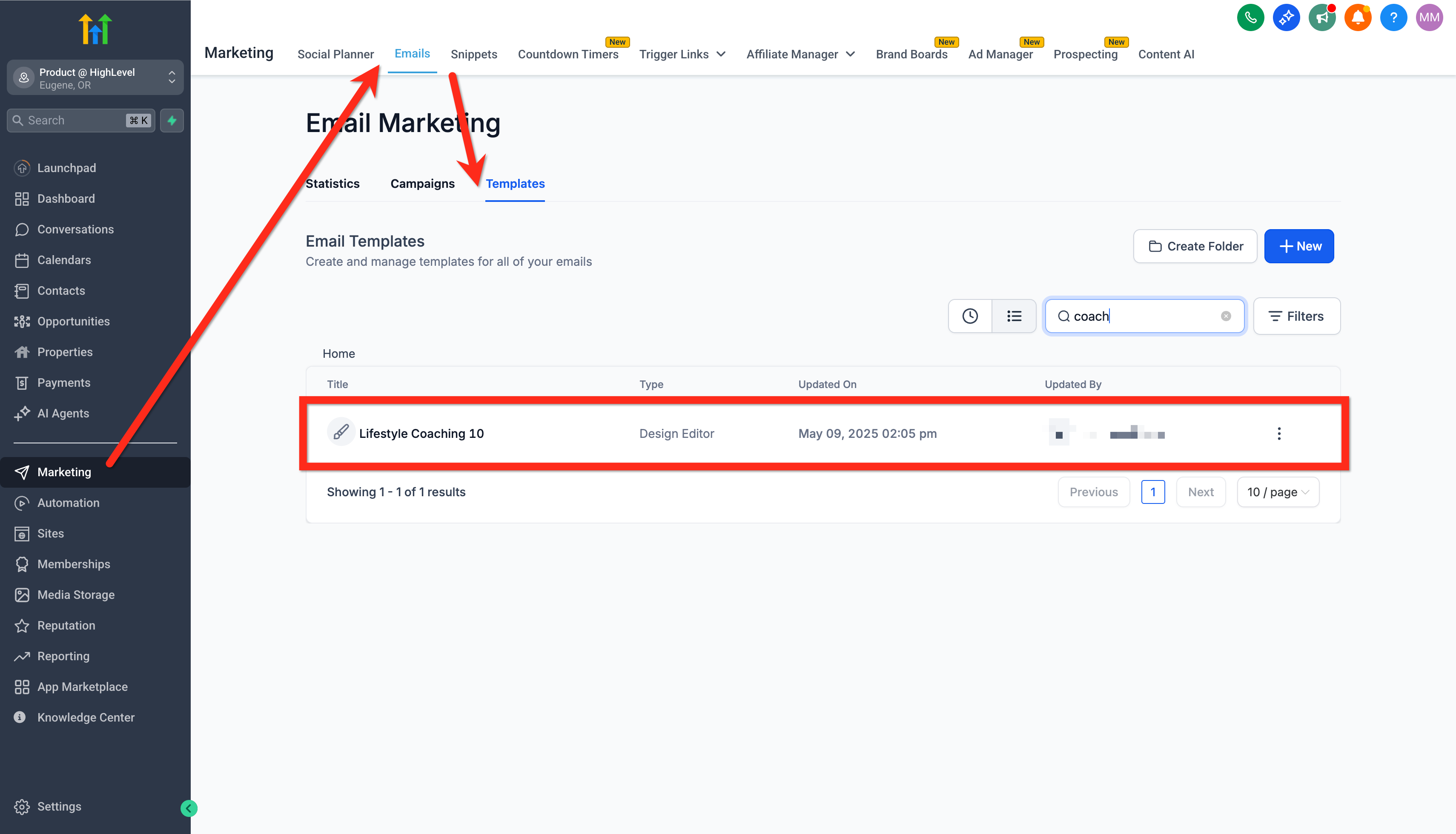
- Adjust various elements like text, images, and layout until you are satisfied with the result.
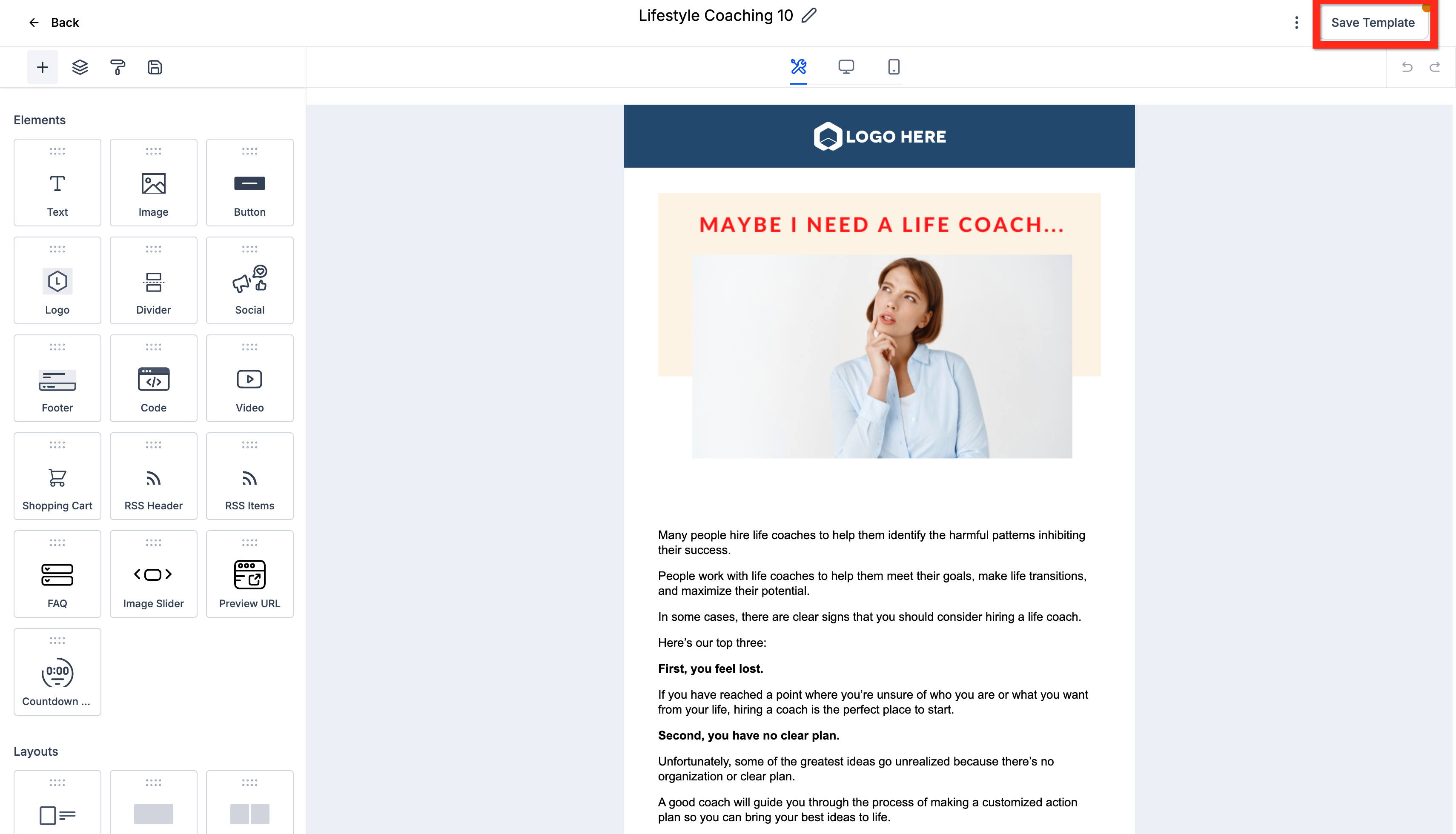
- Click Save Template to apply your changes.
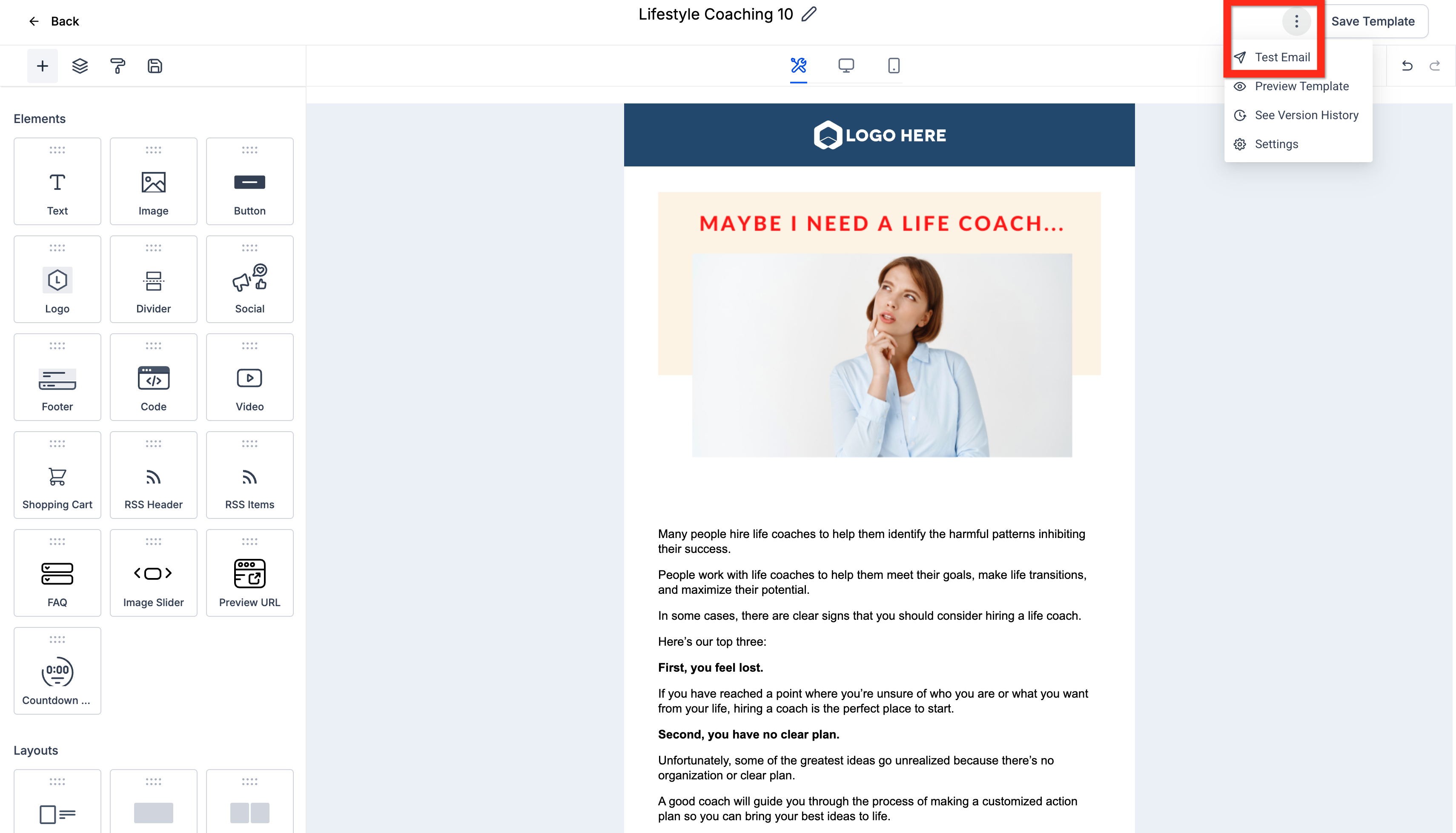
- To ensure everything looks correct, click the 3-dot action menu and select Test Email.
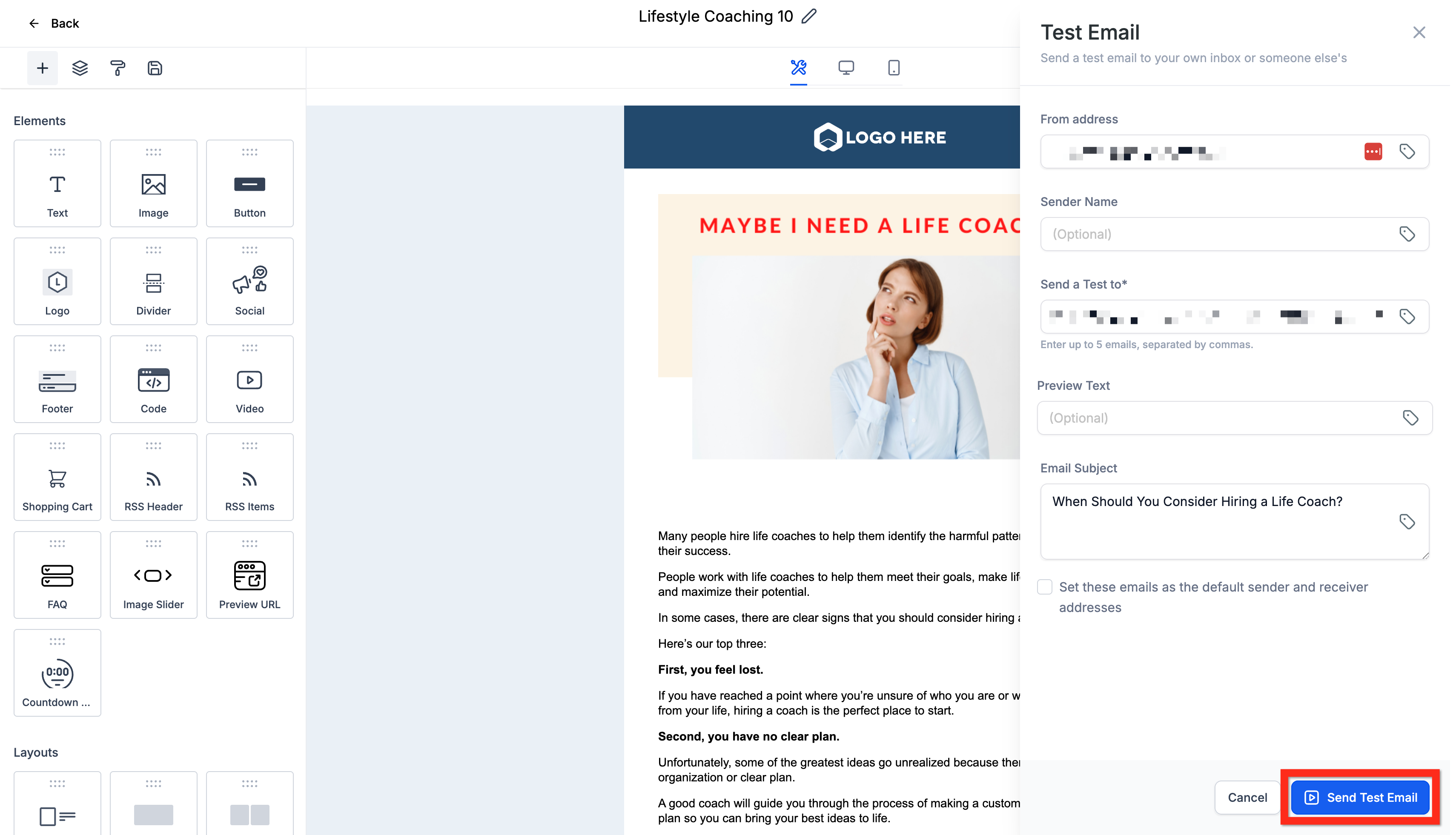
- Enter the necessary details, such as sender information and recipient email addresses.
- Click Send Test Email.
- Once you are happy with the test, click Back to return to the Email Campaign Dashboard.
Your template is now ready. The next step is to use it in an email campaign to connect with your audience.
Using the Dockable Edit Panel & Email AI
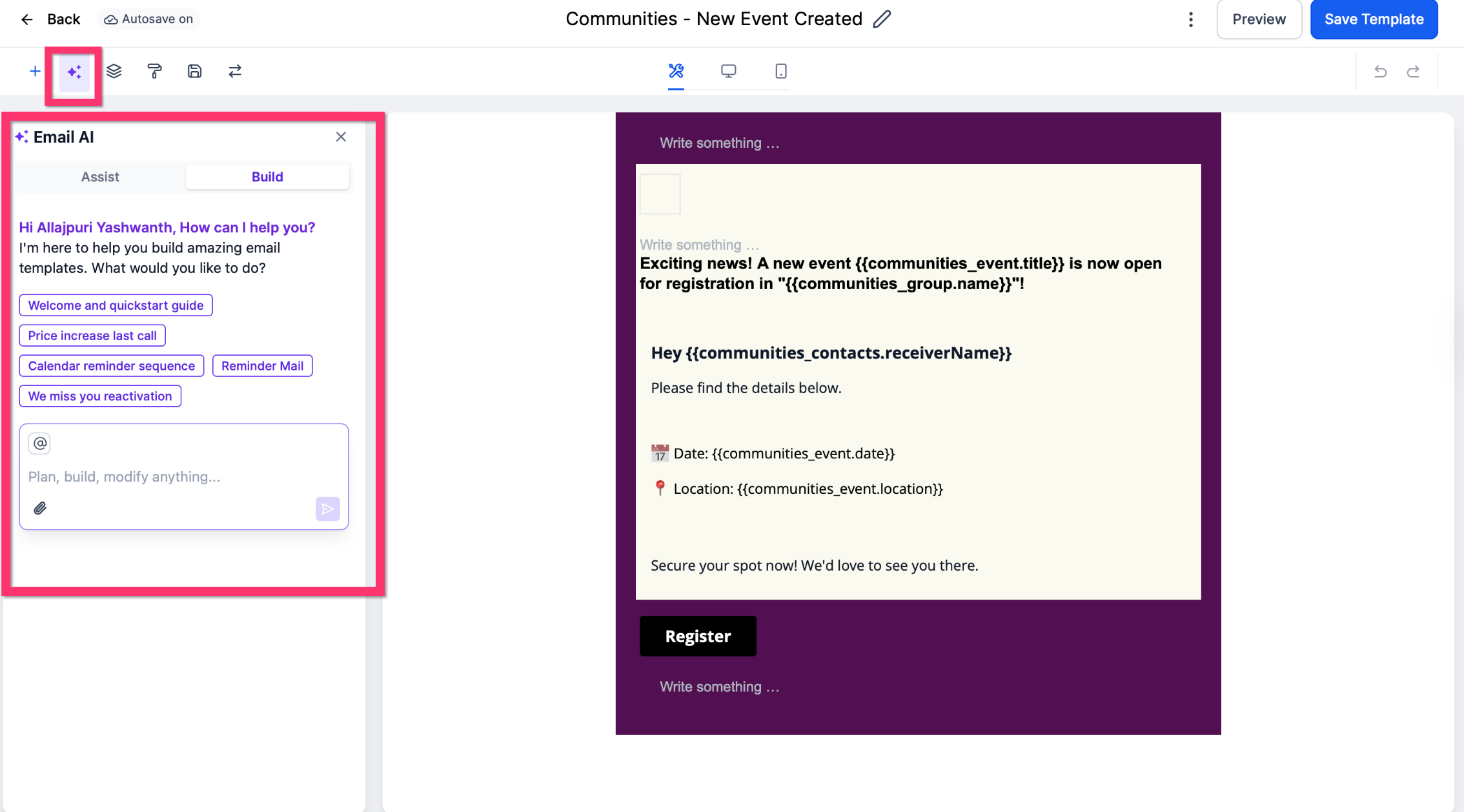
Accelerate your creation process by docking the edit panel to the right, enabling you to work side-by-side with the Email AI assistant.
Steps
- Open your campaign or template in the Email Builder.
- If you need assistance with drafting, enable the Email AI feature.
- Use the panel switch inside the editor to move the panel to the Right (or back to the Left).
- Continue with your editing, previewing, and publishing process as usual.
Creating an Email Campaign from a Template
With your polished template ready, it's time to launch your campaign. Transforming a template into a live campaign is a simple and direct process. Let's get it sent.
- Go to Marketing > Emails > Campaigns.
- Click New and then select Select Template.
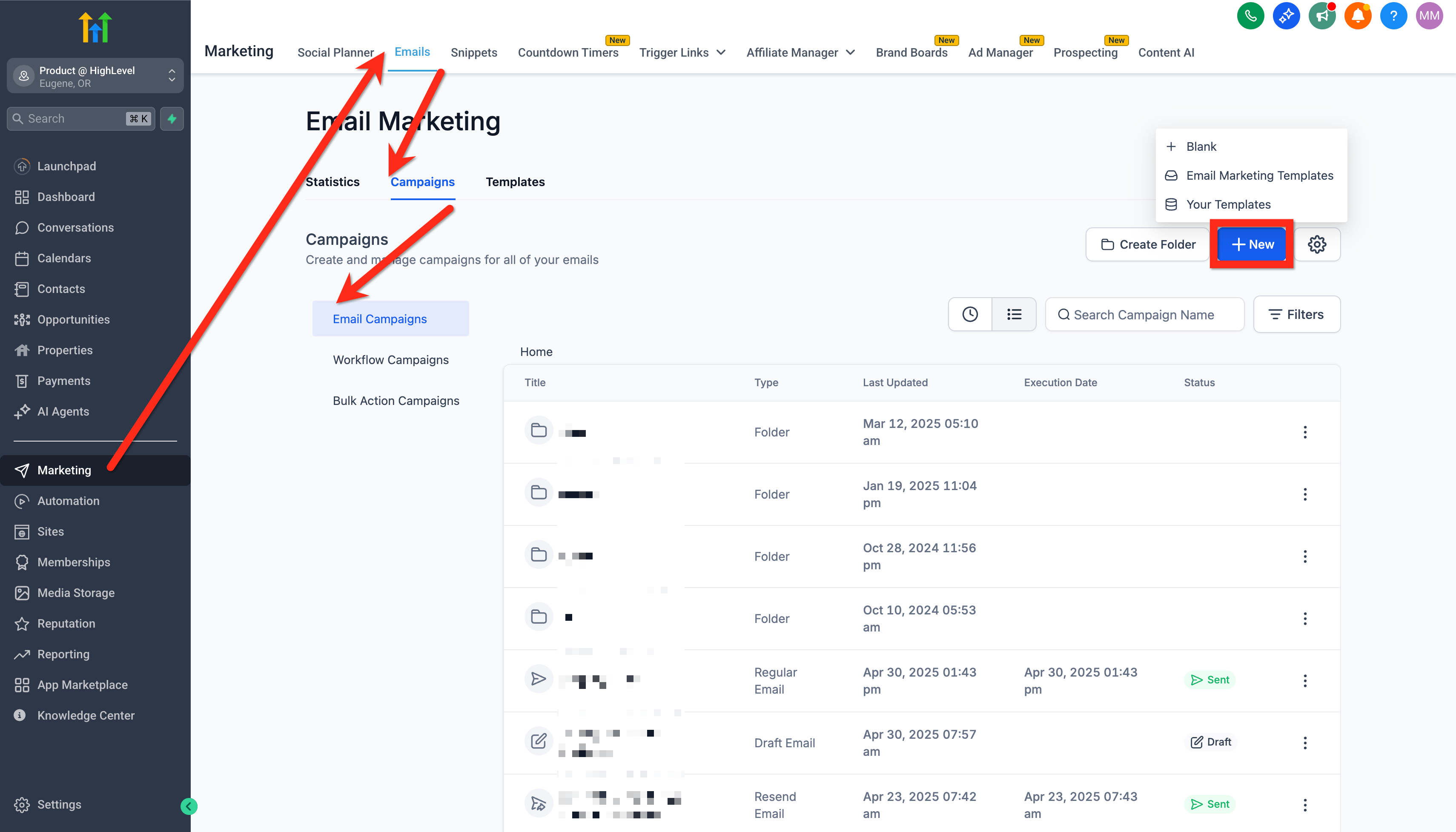
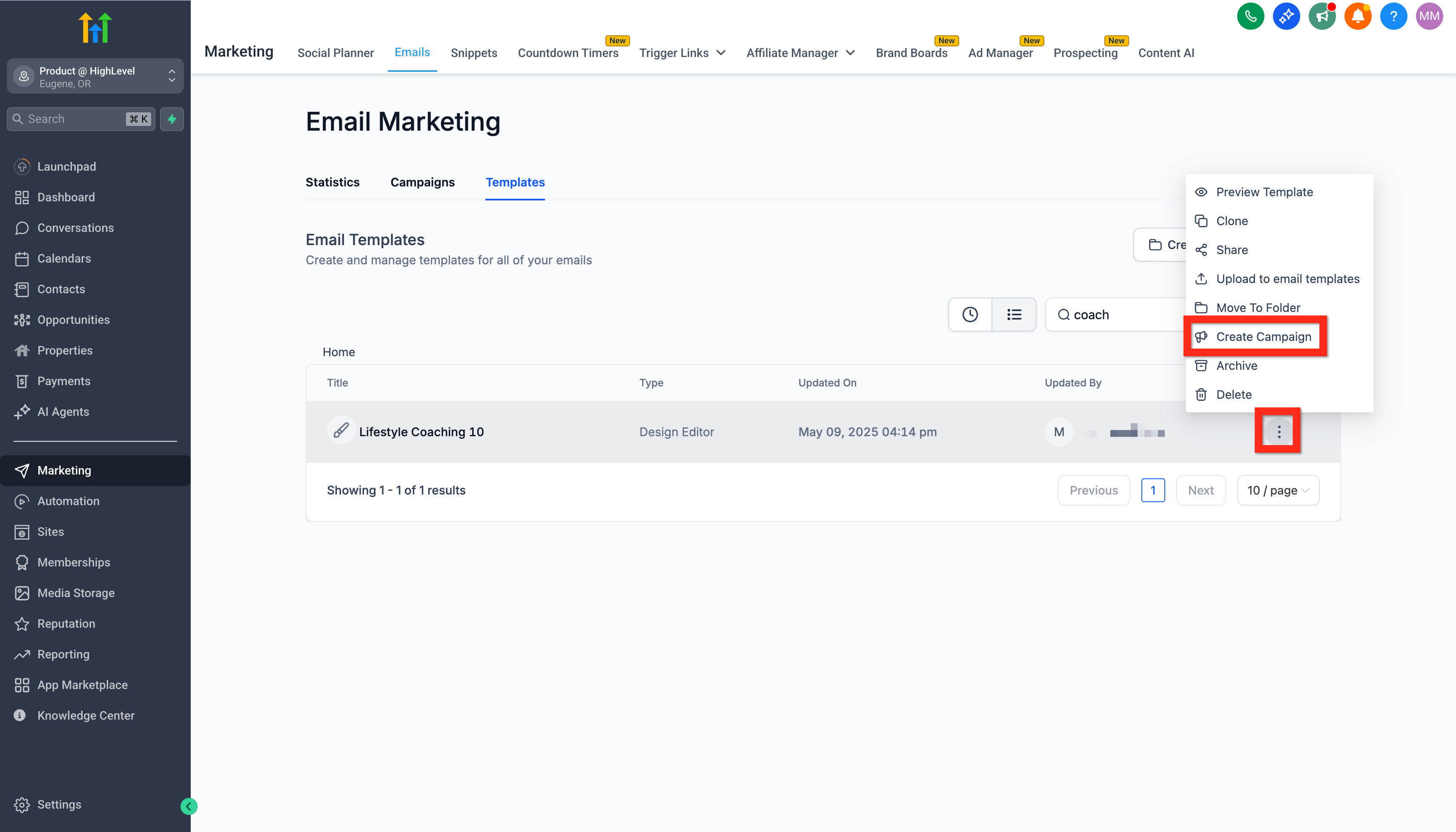
- Alternatively, you can go to the Templates Tab, click the 3-dot action menu next to your desired template, and choose Create Campaign.
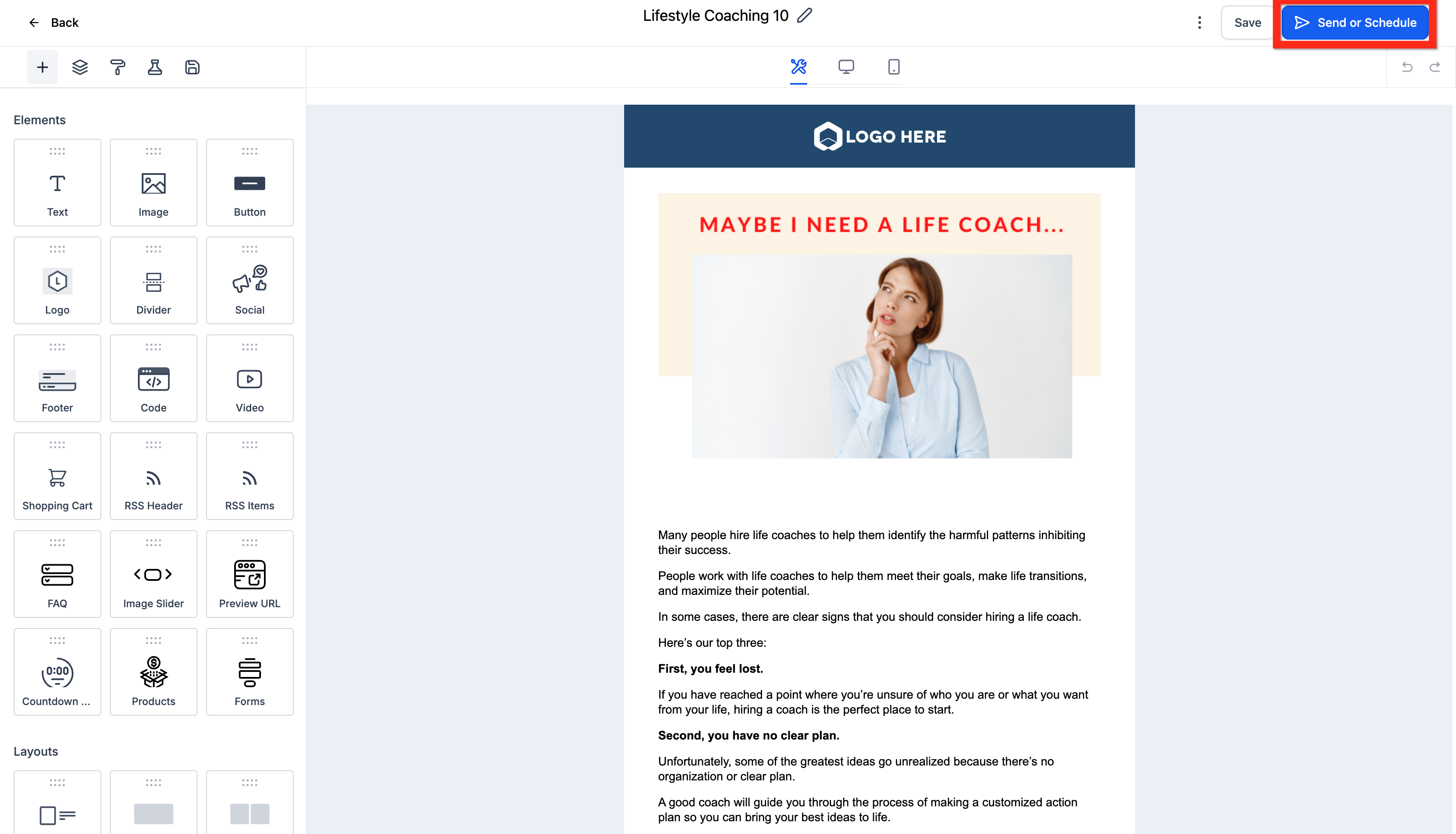
- With the template open in the builder, click Send or Schedule.
- Configure your email settings, such as selecting recipients and enabling tracking options.
- Click Review and Send.

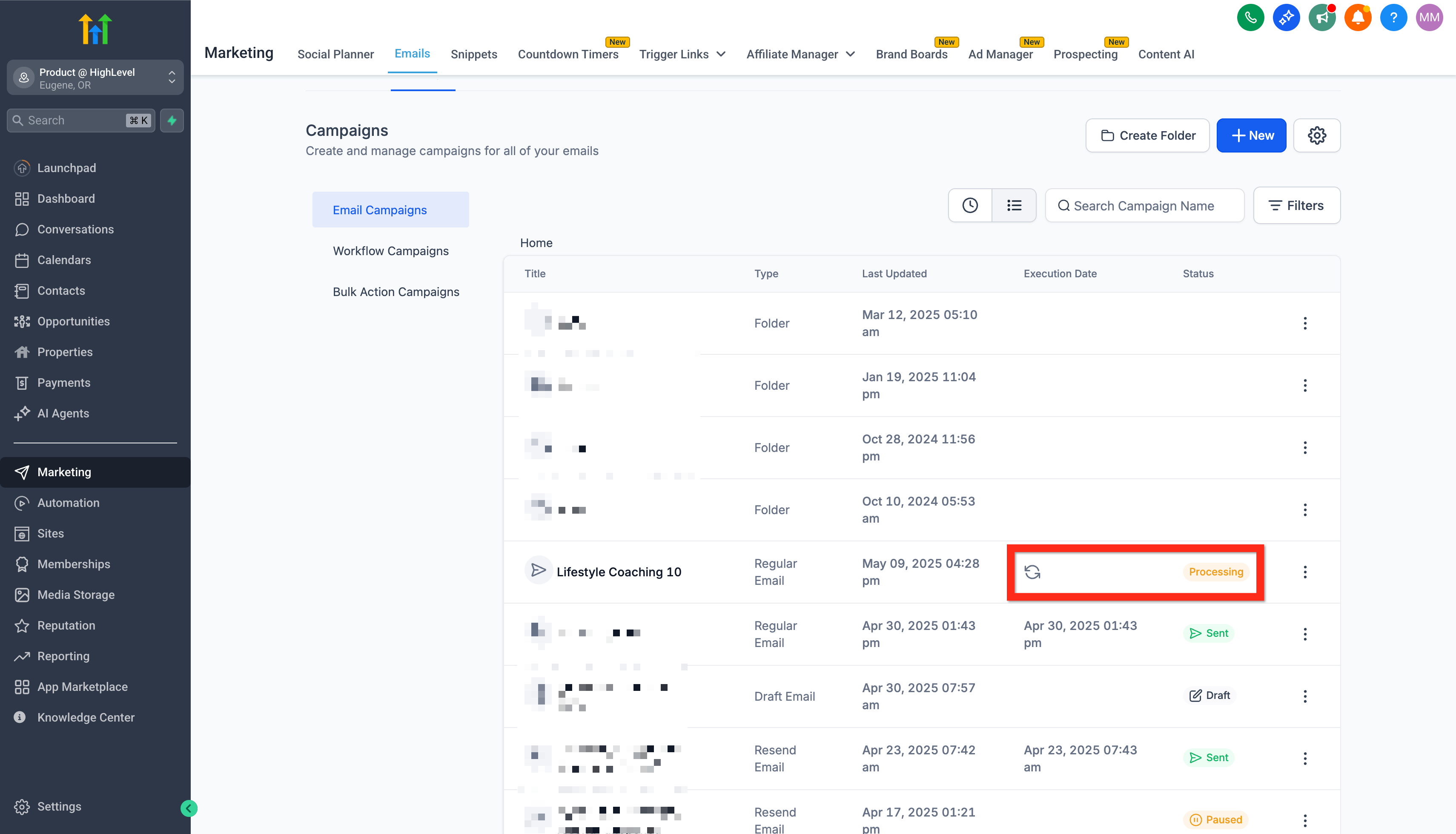
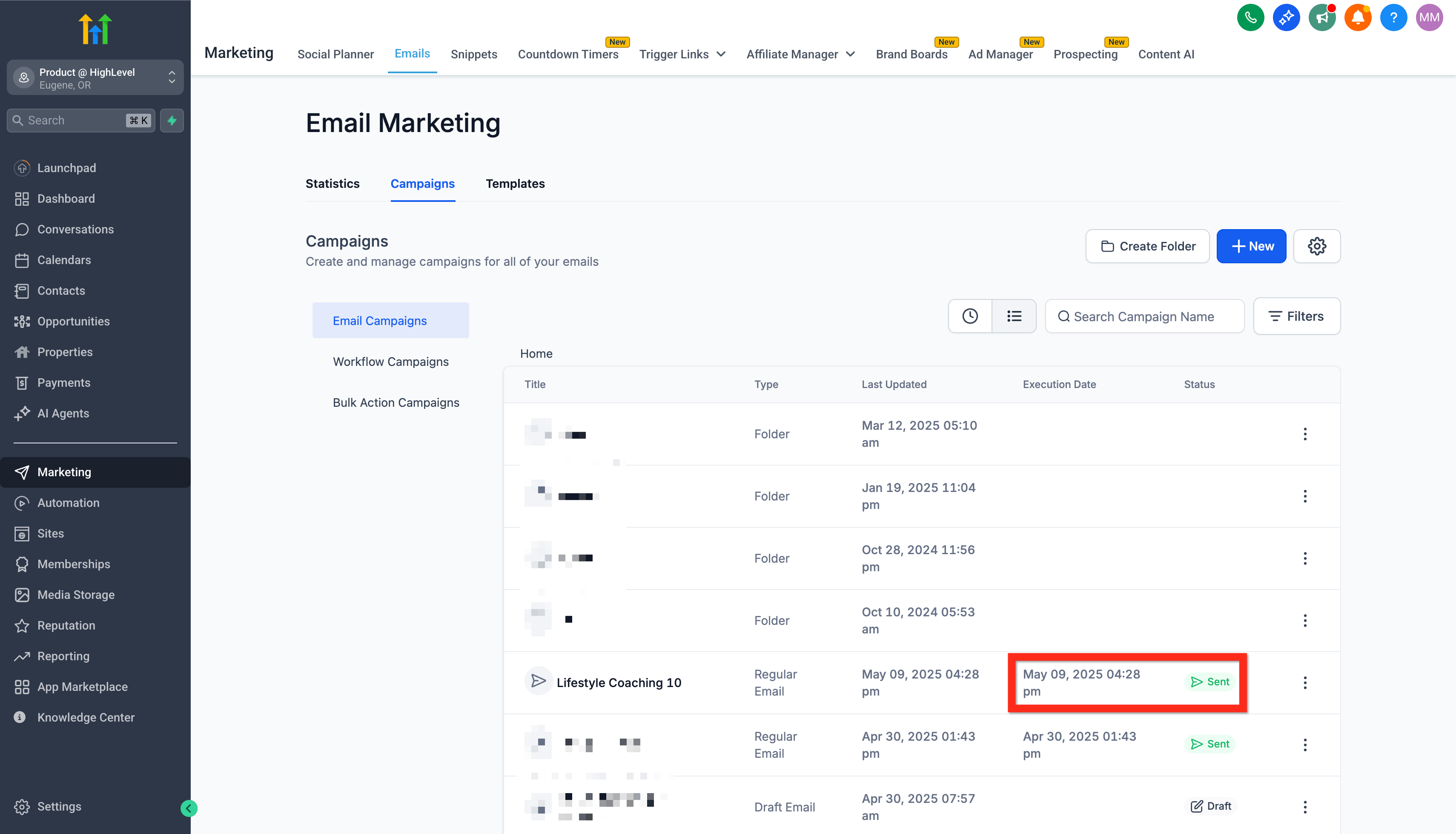
- You can now monitor the status as it changes from "Sending" to "Sent." Congratulations on launching your campaign!