

How to Configure SMS Compliance Settings in Metanow CRM
What are SMS Compliance Settings?
SMS Compliance Settings help ensure your outbound SMS messages align with carrier and policy standards. They work by automatically adding opt-out language (like “Reply STOP to unsubscribe”) and sender identification (such as “Thanks, Alex at Main Street Dental”) when these elements are missing. Activating these settings enhances deliverability, minimizes the risk of filtering, and promotes a consistent, compliant messaging experience.
Key Benefits of SMS Compliance Settings
Understanding the value of these settings makes adoption straightforward. The benefits align directly with carrier guidelines and practical messaging requirements.
- Default Compliance: Automatically appends a sender ID and opt-out language to the first message of a conversation if they are not already included.
- Lower Carrier Filtering Risk: Adds the elements that carriers look for, reducing the likelihood of your messages being blocked.
- Enhanced Brand Clarity: Sender identification helps recipients immediately recognize who is texting them, which can improve trust and increase reply rates.
- Scheduled Compliance: A recurring control re-inserts the sender ID and opt-out information on a set schedule (e.g., every 30 days) to maintain ongoing compliance.
- Smart De-duplication: Prevents the system from adding duplicate opt-out text if you have already included it in your message template.
How to Configure SMS Compliance Settings
Follow these steps to configure your opt-out language, sender identification, and recurring cadence to ensure your messages remain compliant and are delivered reliably.
- Log in to your sub-account.
- From the left-hand menu, click on Settings.
- Navigate to the Phone Numbers tab.
- Click on Messaging from the top menu bar.
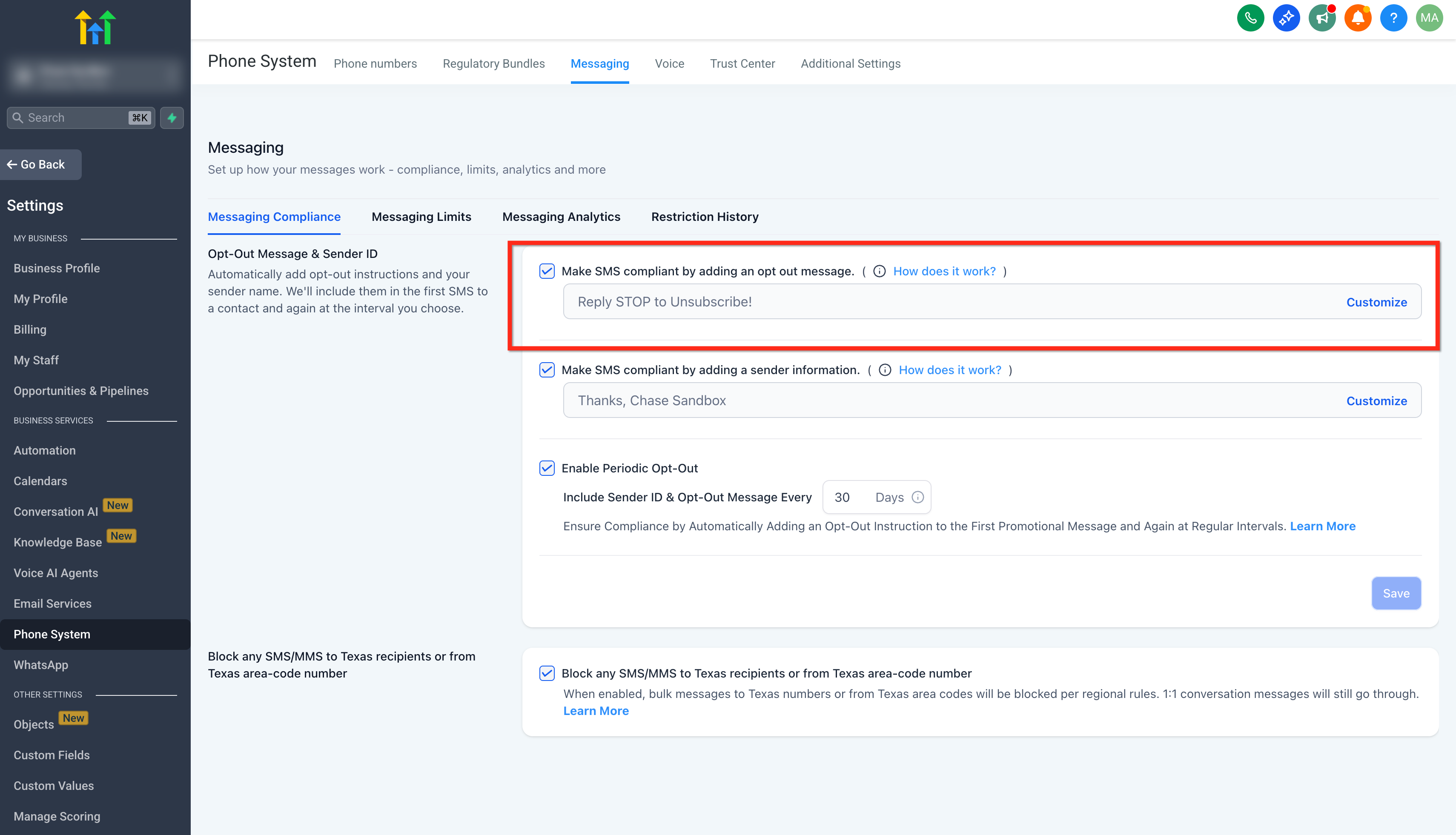
- Toggle the switch for Make SMS compliant by adding an opt-out message to the ON position.
- Click the Customize button to modify the opt-out text as needed.
- Toggle the switch for Make SMS compliant by adding sender information to the ON position.
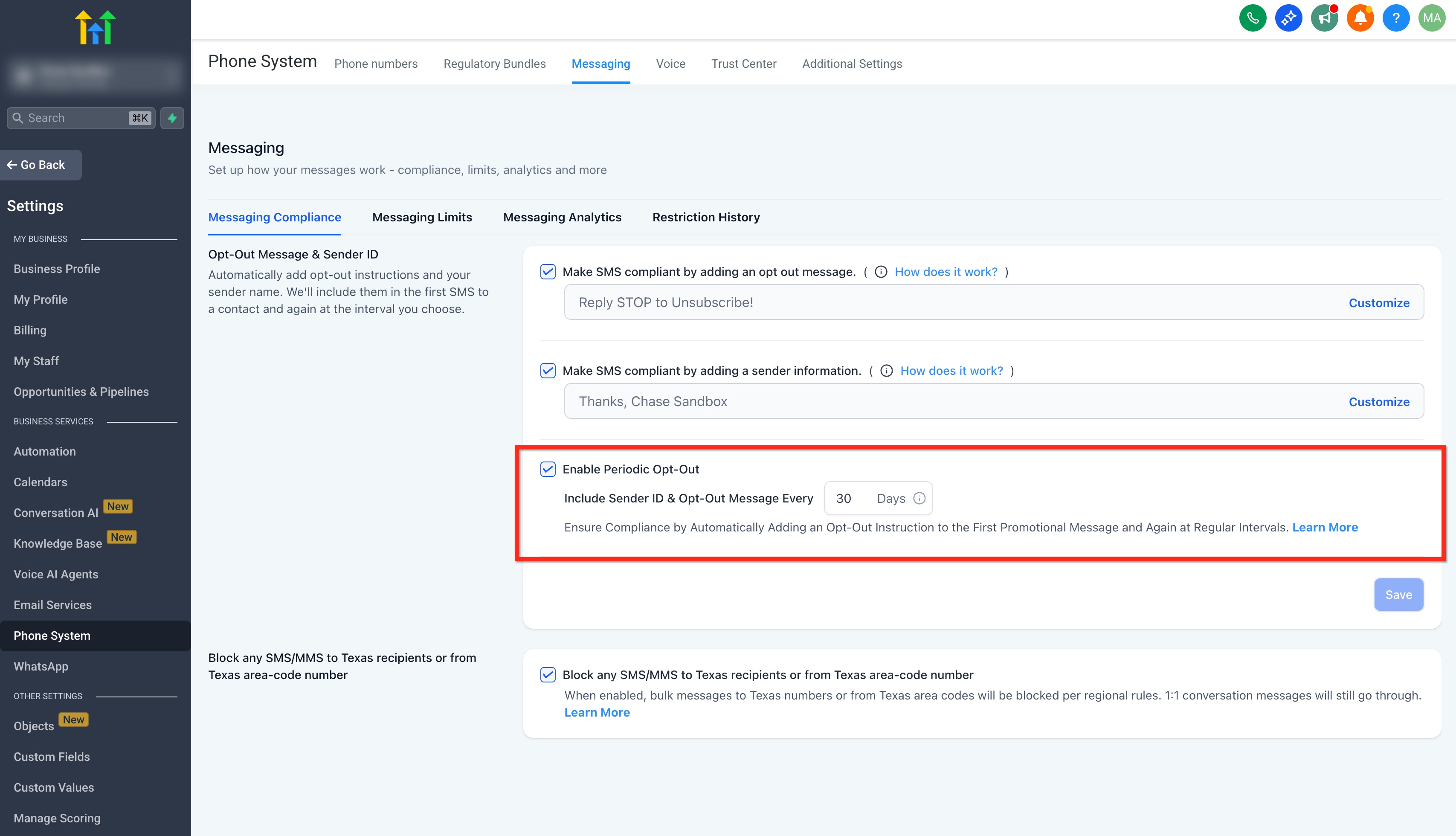
- Toggle Enable periodic opt-out & sender info to ON. This setting controls whether the system re-inserts sender info and opt-out language in ongoing conversations on a recurring schedule.
- In the field Include sender ID and opt-out message every [1–60] days, enter a value between 1 and 60. On or after this interval, the next outbound message to a contact will have the compliance lines re-inserted if they are missing.
- Click the Customize button to edit the sender information.
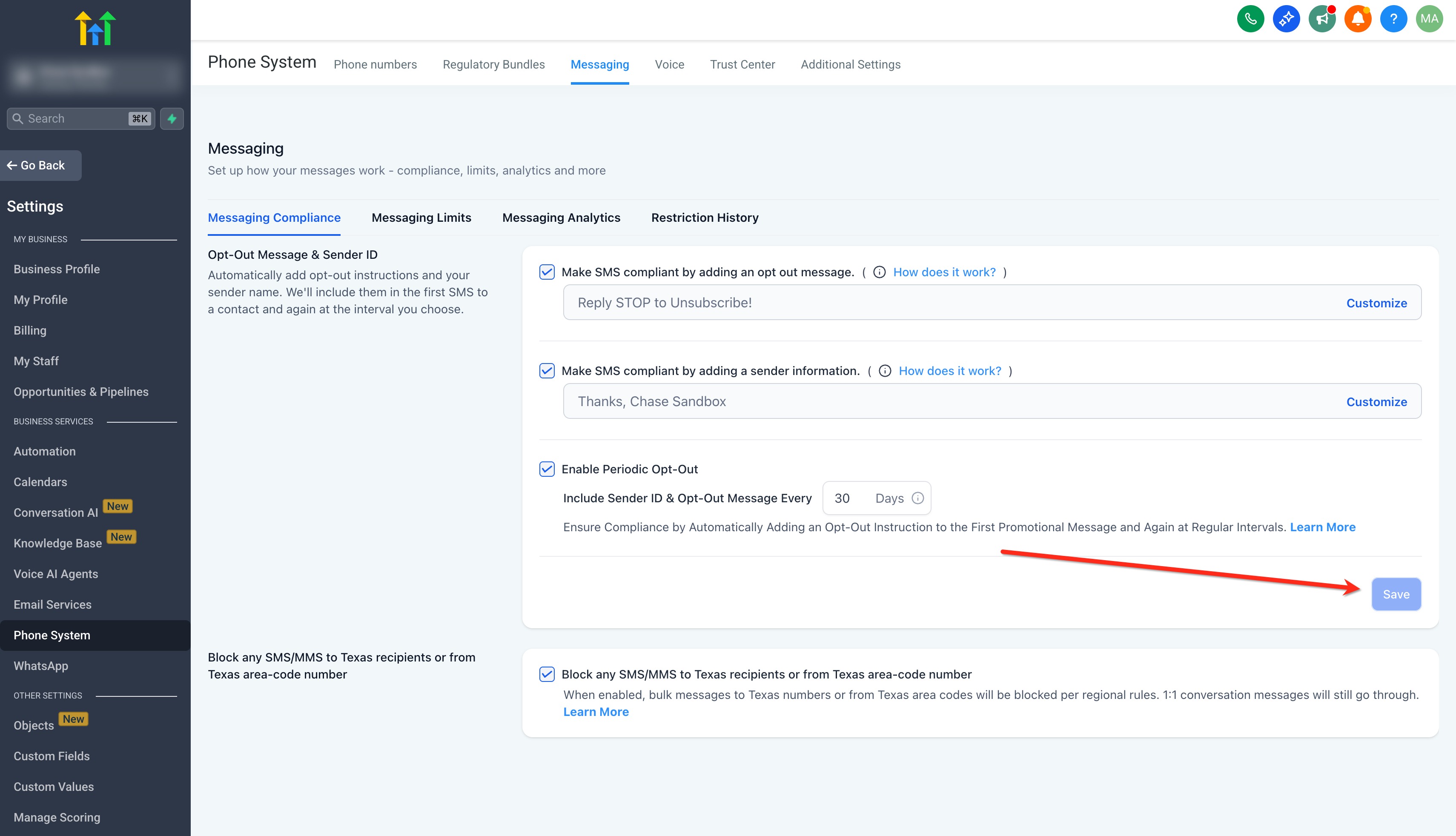
- Click Save to apply your changes.




Tips, Guidelines & Rules
- The first message in any SMS conversation, including Missed Call Text Back and review requests, will always include sender identification and opt-out language. Example: “Reply STOP to unsubscribe.”
- The Opt-Out message will only be added if it is not already present in the message.
- Sub-accounts created within the last 15 days cannot disable these checkboxes.
- Account Users and Admins cannot disable these checkboxes.
- Using strong, simple wording improves deliverability and helps avoid content that may be flagged by carriers.
- Sender ID examples: “Thanks, Jamie at Oak & Co.” or “—Team Acme Fitness.”
- Avoid spam-like formatting, excessive emojis, URL shorteners, and vague brand references.
Defaults & Behavior
- New sub-accounts: Enabled by default.
- Existing sub-accounts: Disabled by default.
- First outbound message: Sender info and opt-out language are always included on the first outbound message in a conversation, even if periodic insertion is disabled.
Smart Detection (Opt-Out Suppression)
- The system suppresses re-insertion only when it detects a full opt-out phrase in your message (for example, an unsubscribe instruction), not when it sees a single keyword in a normal context.
- Single words like “stop” inside regular sentences do not prevent sender info/opt-out insertion.
- Examples of phrases that should suppress insertion (if already present):
- “Reply STOP to unsubscribe.”
- “Text STOP to opt out.”
- “Reply STOP to end.”
- Non-suppression example: “If this time doesn’t work, stop by tomorrow.”
Frequently Asked Questions
Q: Can I disable the sender ID or opt-out language?
A: If you are managing a location that is less than 15 days old or have restricted user permissions, you may not have the option to disable these settings. It is recommended to keep them enabled to maintain compliance.
Q: What happens if my message already includes opt-out language?
A: Metanow CRM is designed to avoid duplication. It will only add the required opt-out text if it is not already present in your message.
Q: How can I customize the opt-out or sender text?
A: You can edit the text in the fields next to each control (or by clicking Customize) within the SMS Compliance tab. Use clear and concise wording, such as “Reply STOP to unsubscribe.”
Q: What keywords are carrier-compliant for an opt-out message?
A: The compliant keywords are STOP, STOPALL, CANCEL, UNSUBSCRIBE, END, or QUIT.
