

How to Set Up and Use the Voice AI Chat Widget
Overview
The Voice AI Chat Widget enables visitors to communicate with your AI agent through real-time voice conversations directly within the chat widget. This feature allows users to interact using their browser’s microphone and speakers, eliminating the need for a phone number, download, or call setup. It is currently available under Labs, where you can enable and test the feature before its general release.
The Voice AI Chat Widget functions as a voice-only interaction mode within the existing chat widget framework. Visitors can start a live voice session by clicking a microphone icon, and the AI agent will respond conversationally in real time.
During a session, visitors can:
Start or end a voice conversation.
Mute or unmute the session as needed.
Provide contact information and other details verbally.
Restart a conversation at any time by disconnecting and initiating a new call.
The AI agent utilizes your configured Voice AI automations to manage interactions. All existing Voice AI actions are supported, with the exception of Call Transfer, which is not currently available.
Key Capabilities
Browser-based voice calling directly from the chat widget.
No outbound call or phone number is required.
Configurable AI Agent Name to align with your brand or business.
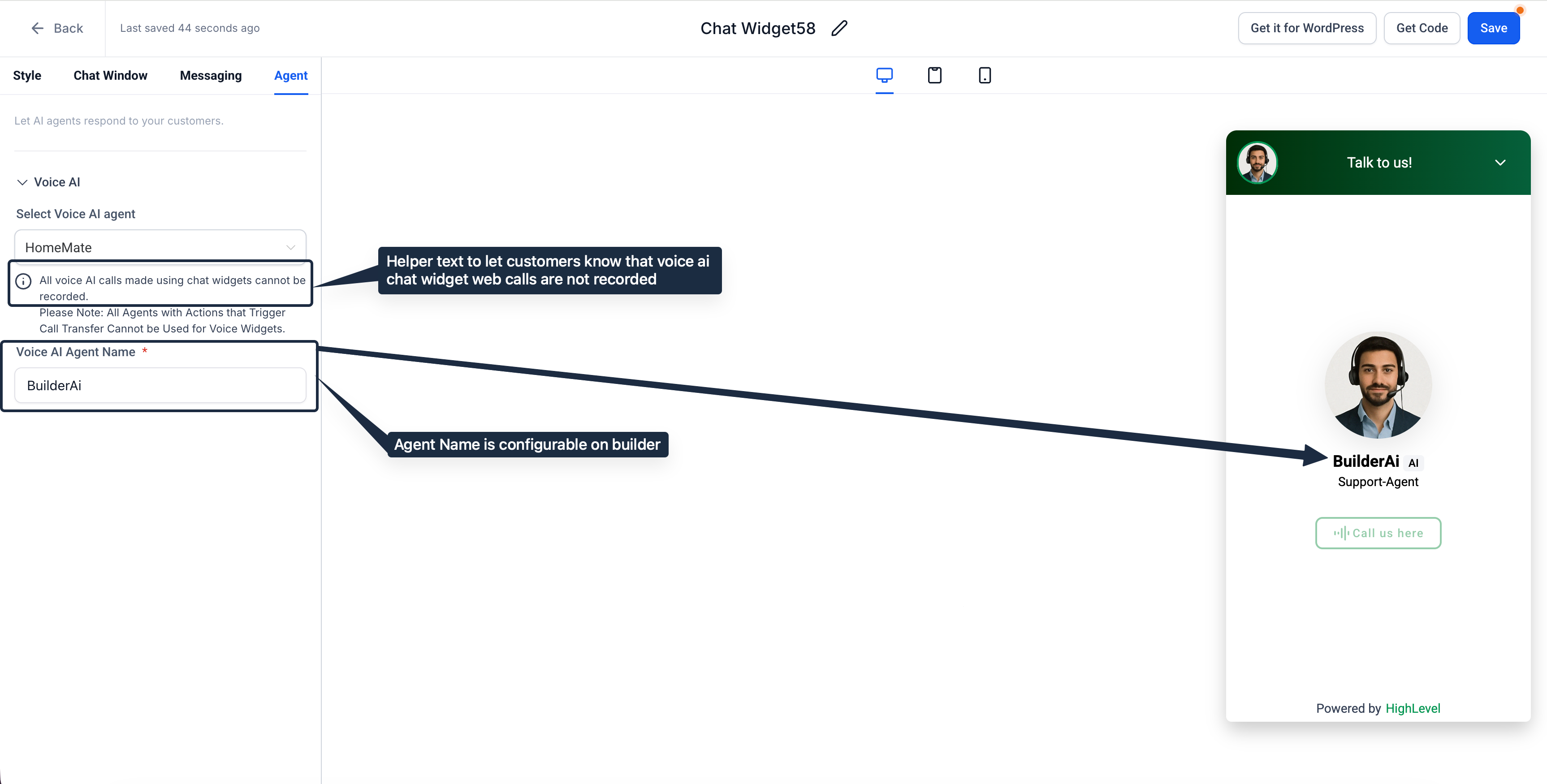
Automatic call recording notice is displayed for transparency.
Built-in reCAPTCHA protection to prevent automated or repeated misuse.
Full compatibility with existing Voice AI actions and workflows.
Step 1: Enable from Labs
Navigate to Settings > Labs > sub-account tab.
Locate the Voice AI Chat Widget option.
Toggle the feature ON to enable it.
Once enabled, the Voice AI chat type will be available in the Chat Widget builder. If you manage multiple accounts, you can enable or disable it for specific sub-accounts.
Step 2: Configure the Widget
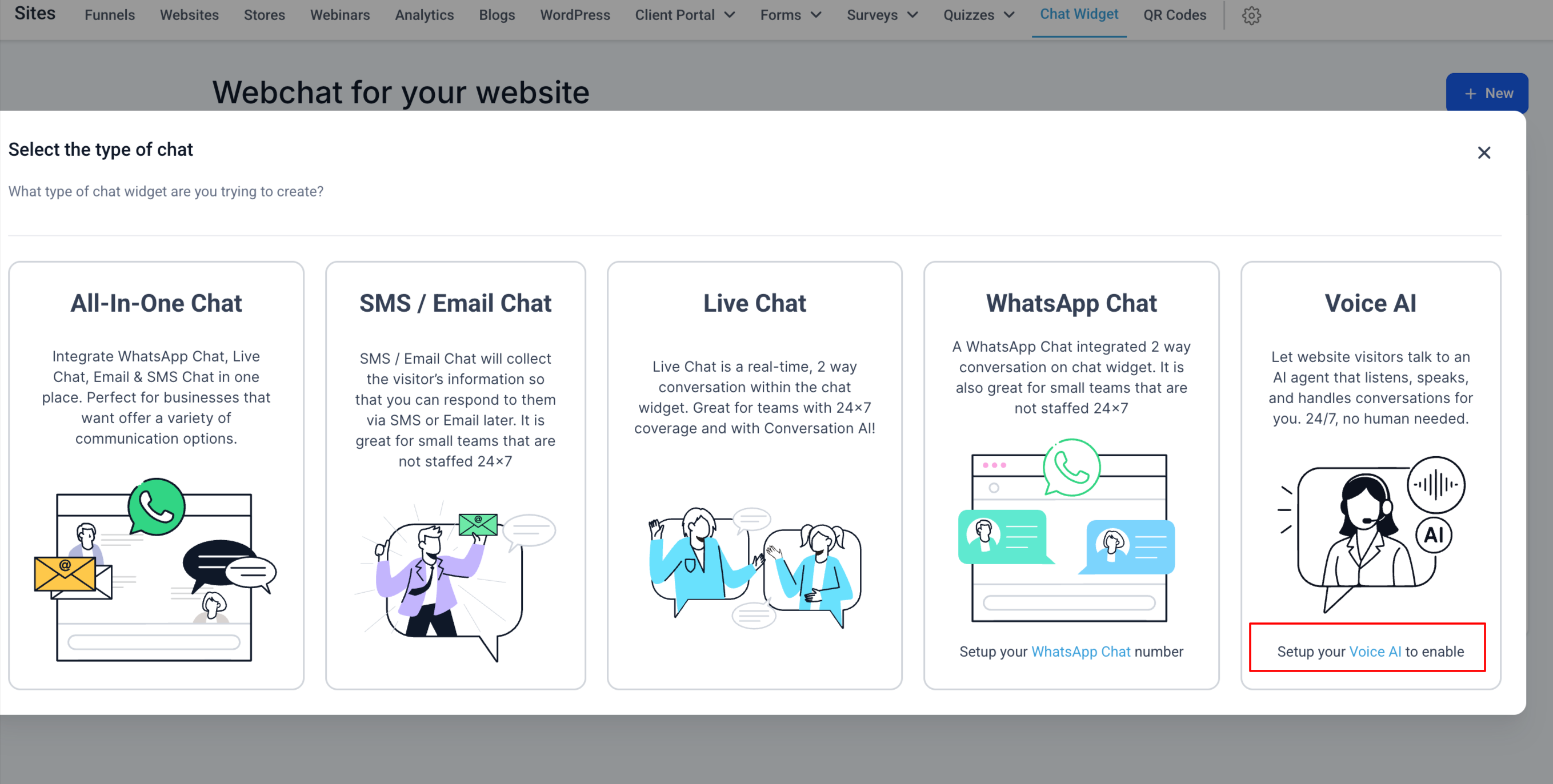
Go to Sites > Chat Widgets.
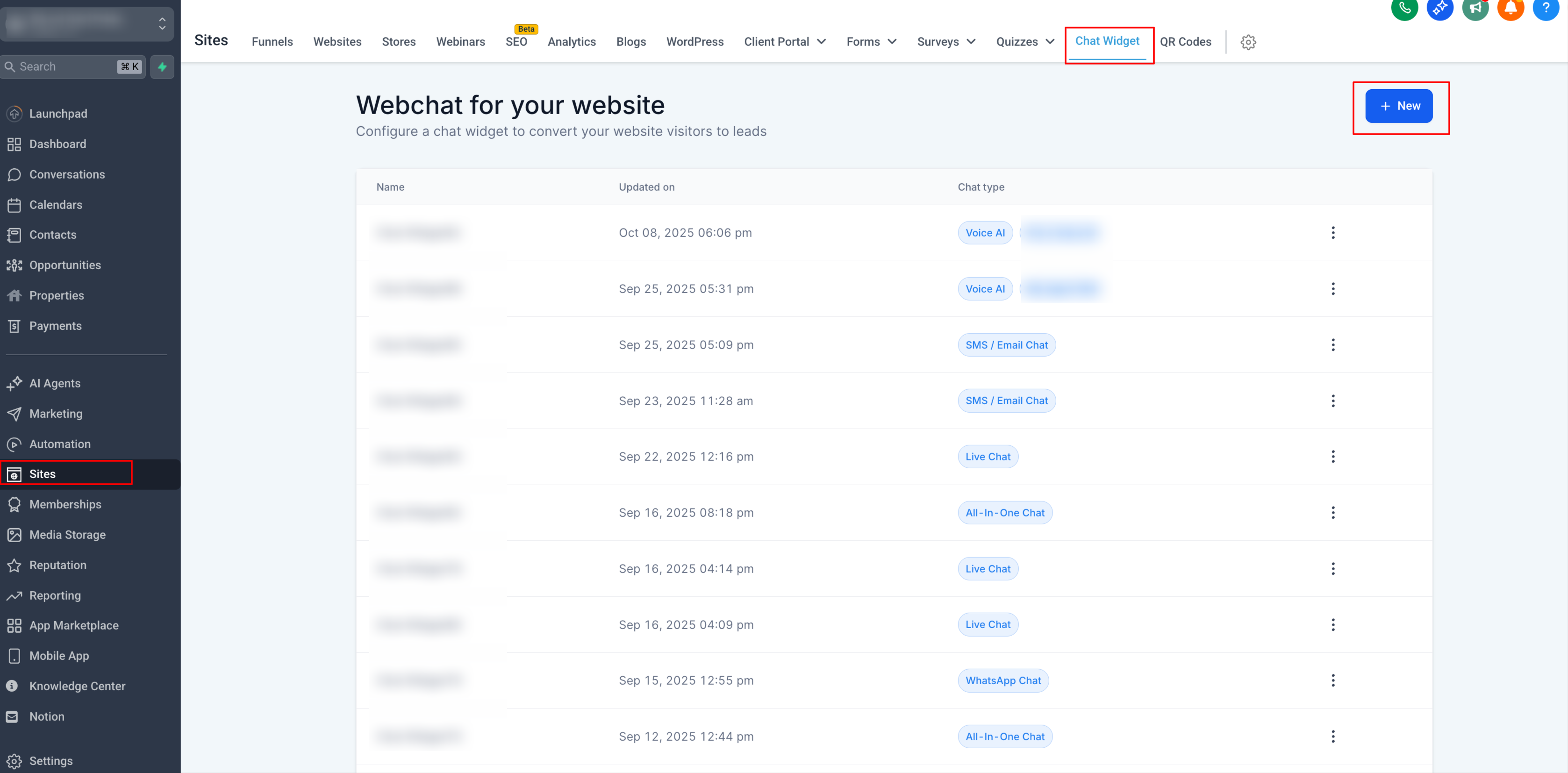
Open an existing widget or create a new one.
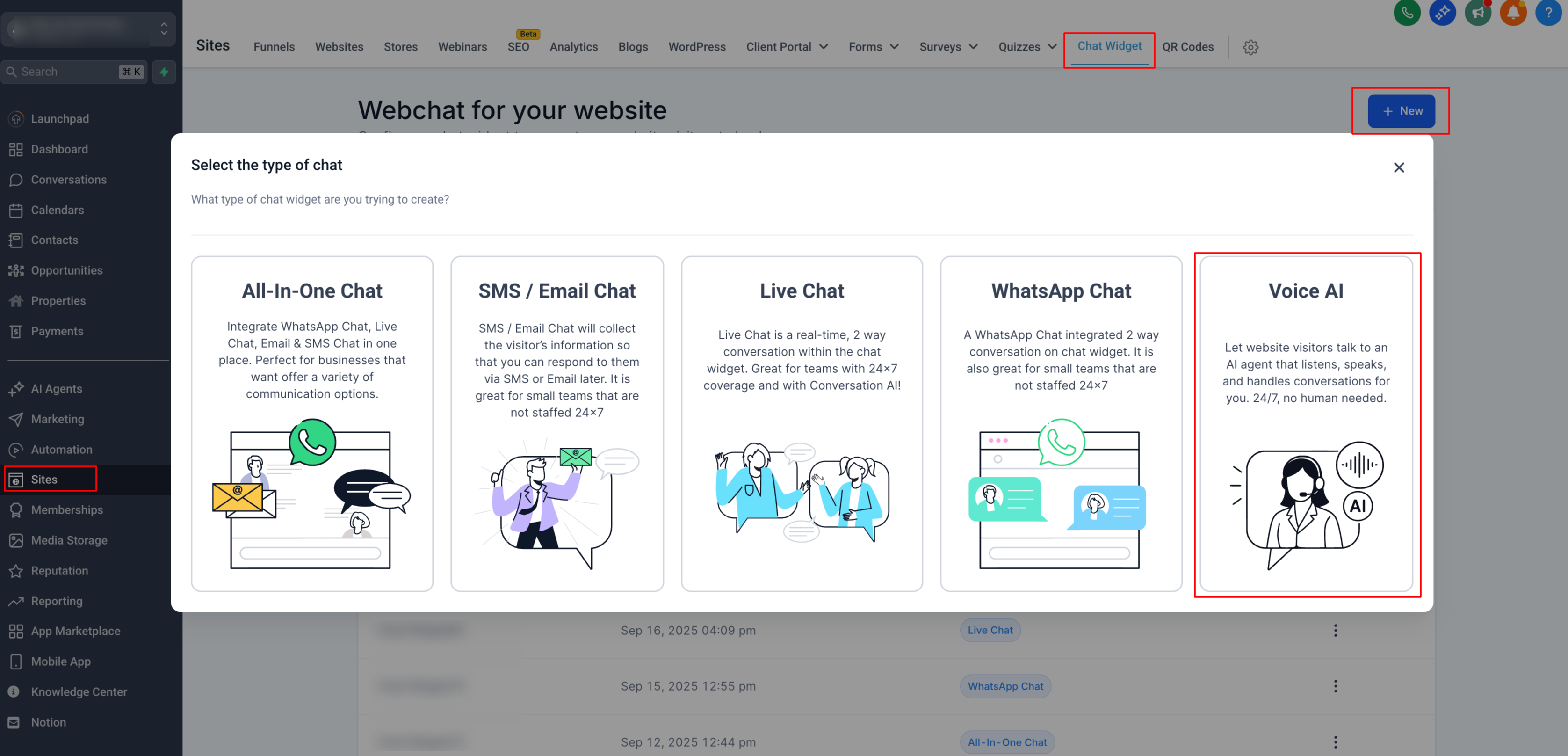
Under the Agent Tab, select Voice AI Agent.
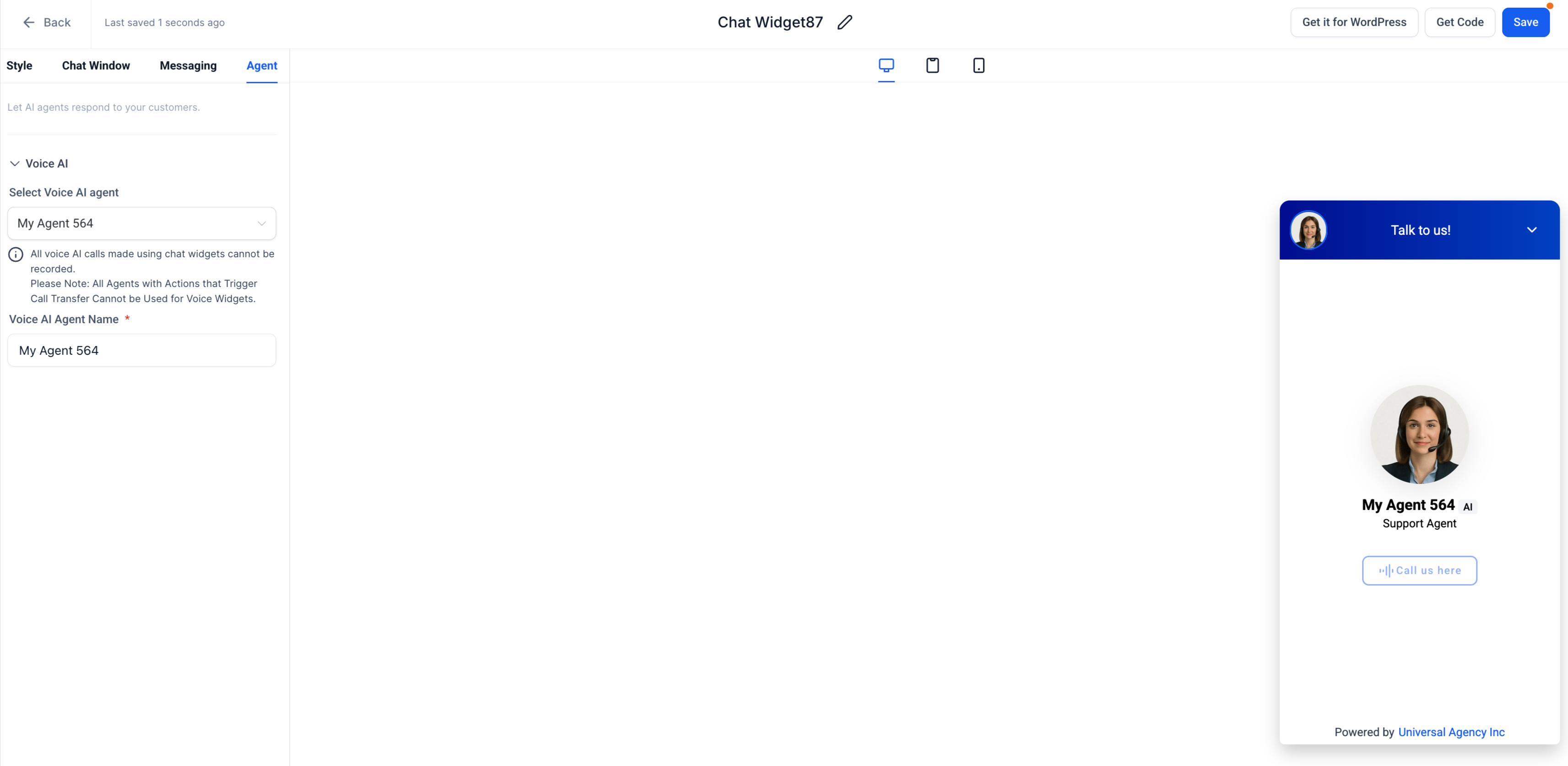
In the Voice AI Agent Name field, enter the name that will be displayed to visitors (e.g., “Sales Assistant” or “SupportBot”).
Click Save to apply your settings.
Note: You must complete your Voice AI setup and agent creation before you can create a voice AI chat widget.
Step 3: Add the widget to a website or funnel
In the Chat Widget builder, click Get Code.
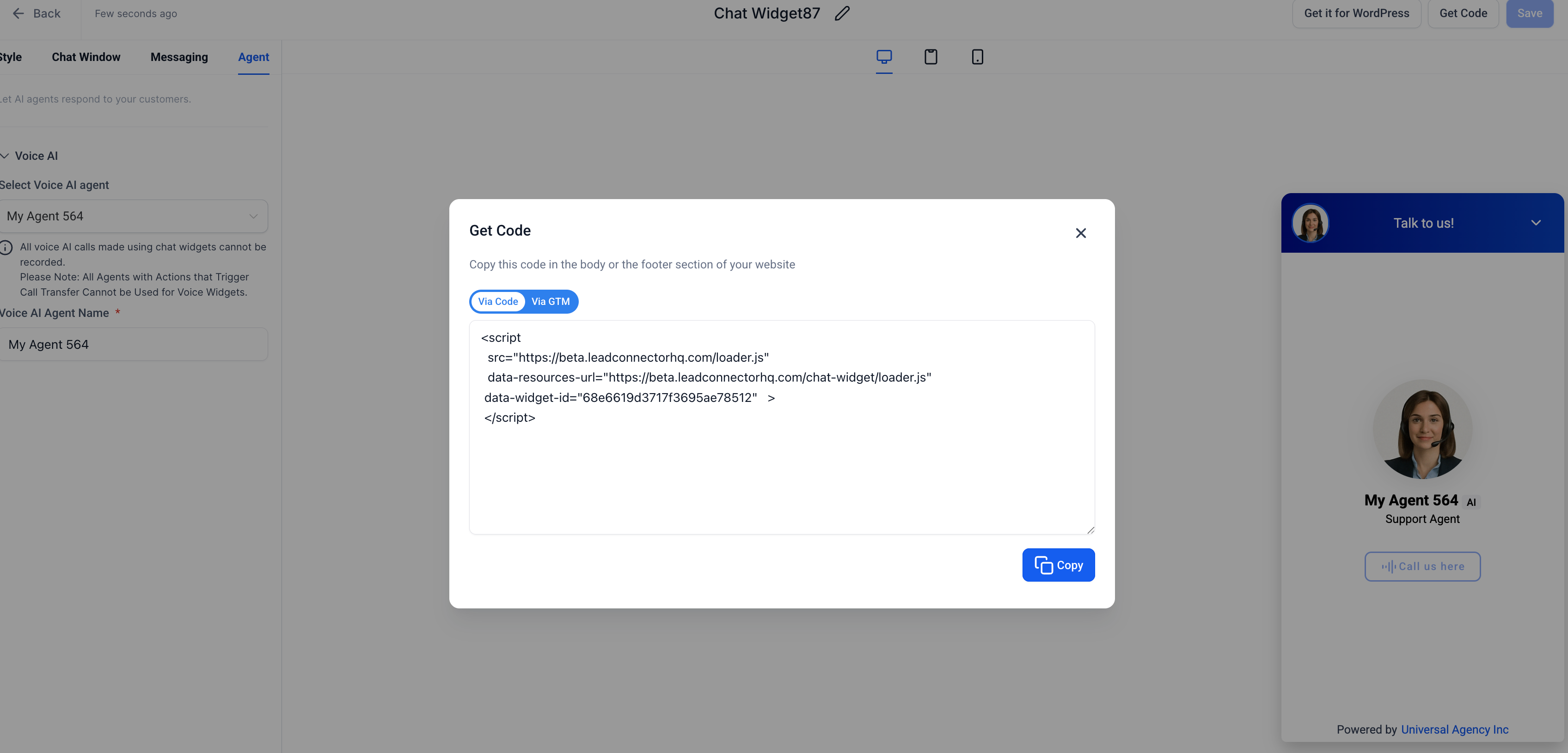
Copy the generated
<script>tag.Paste this code into the body or footer section of your website or funnel where you want the widget to appear.
Publish or update the page.
Once published, the Voice AI Chat Widget will be active on your site.
Step 4: How visitors interact
When a visitor opens the chat widget:
They will see a microphone icon, indicating voice chat capability.
Clicking the icon initiates the live voice session.
The browser will request microphone access, which visitors must grant.
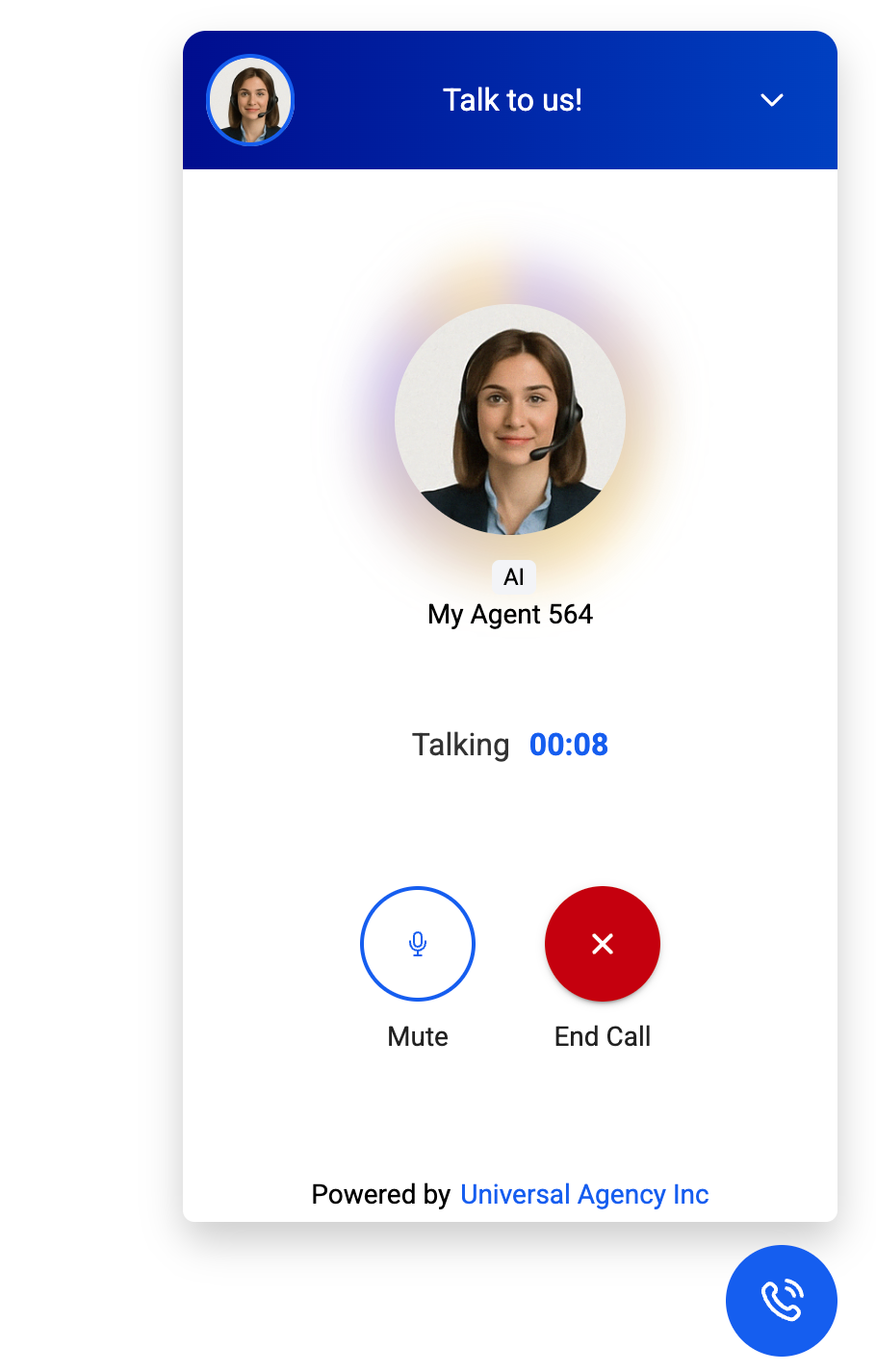
The AI agent responds conversationally in real time.
Visitors can start, mute, or end calls as they wish.
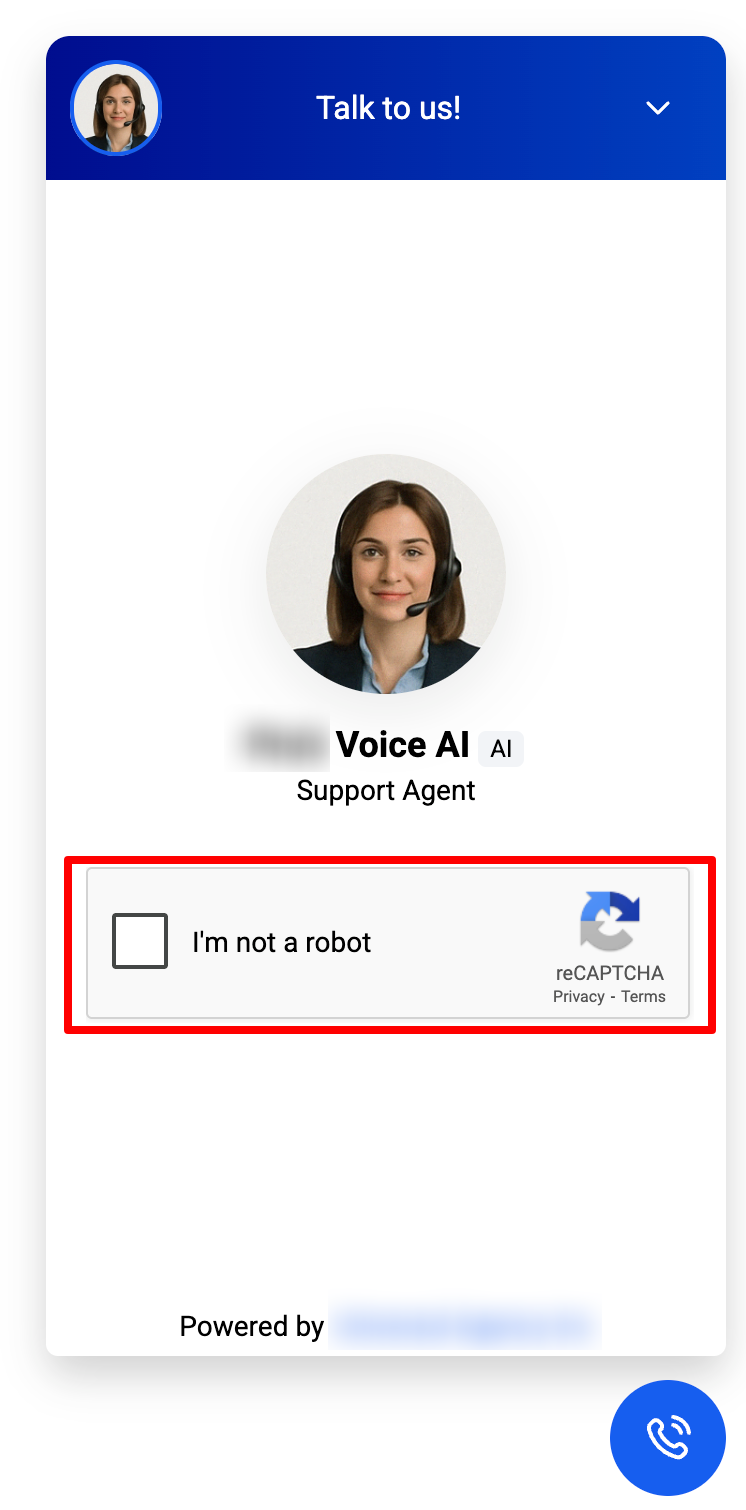
If a user rapidly connects and disconnects multiple times (10 times within 60 seconds), the system will trigger a reCAPTCHA challenge to verify legitimate use.
Best Practices
Choose a clear and friendly agent name that aligns with your brand’s tone.
Add the Voice AI widget to high-intent pages, such as “Contact,” “Pricing,” or “Demo Request.”
Test microphone permissions across different browsers to ensure consistent functionality.
Minimize background noise when training or testing your agent.
Inform users that calls are not recorded to maintain transparency.
Monitor early usage during the Labs phase to understand user behavior and adjust your agent and widget configurations as needed.
Security and Compliance
The Voice AI Chat Widget incorporates built-in security and compliance features:
reCAPTCHA protection prevents misuse from repeated connect/disconnect actions.
A non-recording notice is automatically displayed to ensure transparency.
All conversations are handled within the browser, protecting user privacy.
The feature adheres to standard browser permission protocols for microphone and speaker access.
Troubleshooting
IssuePossible CauseResolutionVoice session not startingMicrophone permission not grantedAsk the user to allow microphone access when prompted.No audio outputSpeakers are muted or disconnectedCheck audio settings and ensure the device output is active.Widget not appearingScript was not installed correctlyRe-copy and re-insert the <script> tag from the builder.Frequent reCAPTCHA promptsRapid connection attempts were detectedSlow down the reconnection frequency to avoid triggering the system.Unable to record sessionsThis feature is not supportedInform users that call recording is currently unavailable.
Example: Setting up for lead capture
This example demonstrates how to use the Voice AI Chat Widget to capture leads through voice interactions.
Objective:
Convert website visitors into qualified leads using voice interaction.
Setup Steps:
Enable the Voice AI Chat Widget in Labs.
Create or open a Chat Widget and select the Voice AI Agent Type.
Name the agent “Sales Assistant.”
Configure your Voice AI flow to:
Greet the visitor.
Collect their name and business details.
Confirm their interest type (e.g., service inquiry, demo request).
Save the lead in your CRM.
End the session politely.
Embed the widget on your Contact Us or Pricing page.
Expected Experience:
A visitor clicks the microphone icon.
The AI agent greets them and starts asking questions.
The visitor provides their answers verbally.
The system automatically captures and stores their details.
Result:
Lead information is collected efficiently without requiring visitors to fill out forms or perform manual data entry.
