
How to Set Up Custom User Notifications in a Sub-Account
This article will guide you through Metanow CRM’s Notification Settings, which allow users to control how and where they receive notifications. Whether you prefer alerts via email, desktop, or the mobile app, this feature helps minimize distractions and ensures you never miss a critical update.
What is Notification Settings?
The Notification Settings feature helps users choose how they want to be alerted about important actions, such as new messages, tasks, appointments, or reviews, across various communication channels. The primary goal is to reduce unnecessary noise, allowing users to concentrate on what is most relevant to them.
Key Benefits of Notification Settings
Easily manage your workflows and communications by controlling when, where, and how you get notified.
- Centralized control of notification preferences for multiple event types
- Choose from delivery options: Web App, Desktop, Email, Mobile App, and SMS
- Task reminders to reduce missed deadlines
- Supports timezone-specific scheduling for daily alerts
- Minimizes alert fatigue by customizing preferences
- Direct click-to-redirect saves time navigating the CRM
How To Use the Notification Settings
Personalize notification settings to align with your role, preferences, and devices.
To manage your notification preferences:
Access Settings Panel
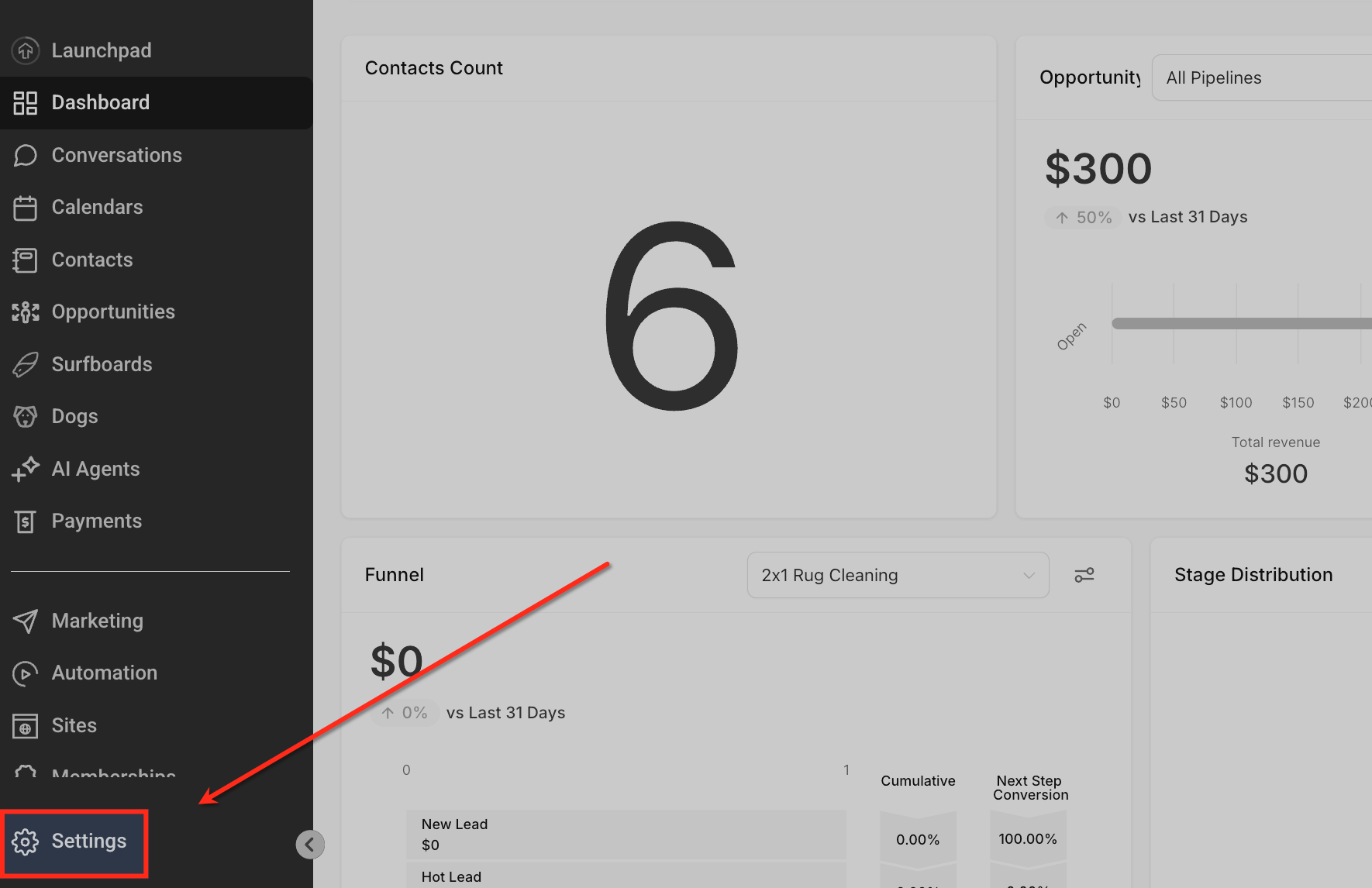
To access your workspace settings, click Settings on the left-hand sidebar. Here, you can manage user preferences, notification settings, and more.
Open My Profile
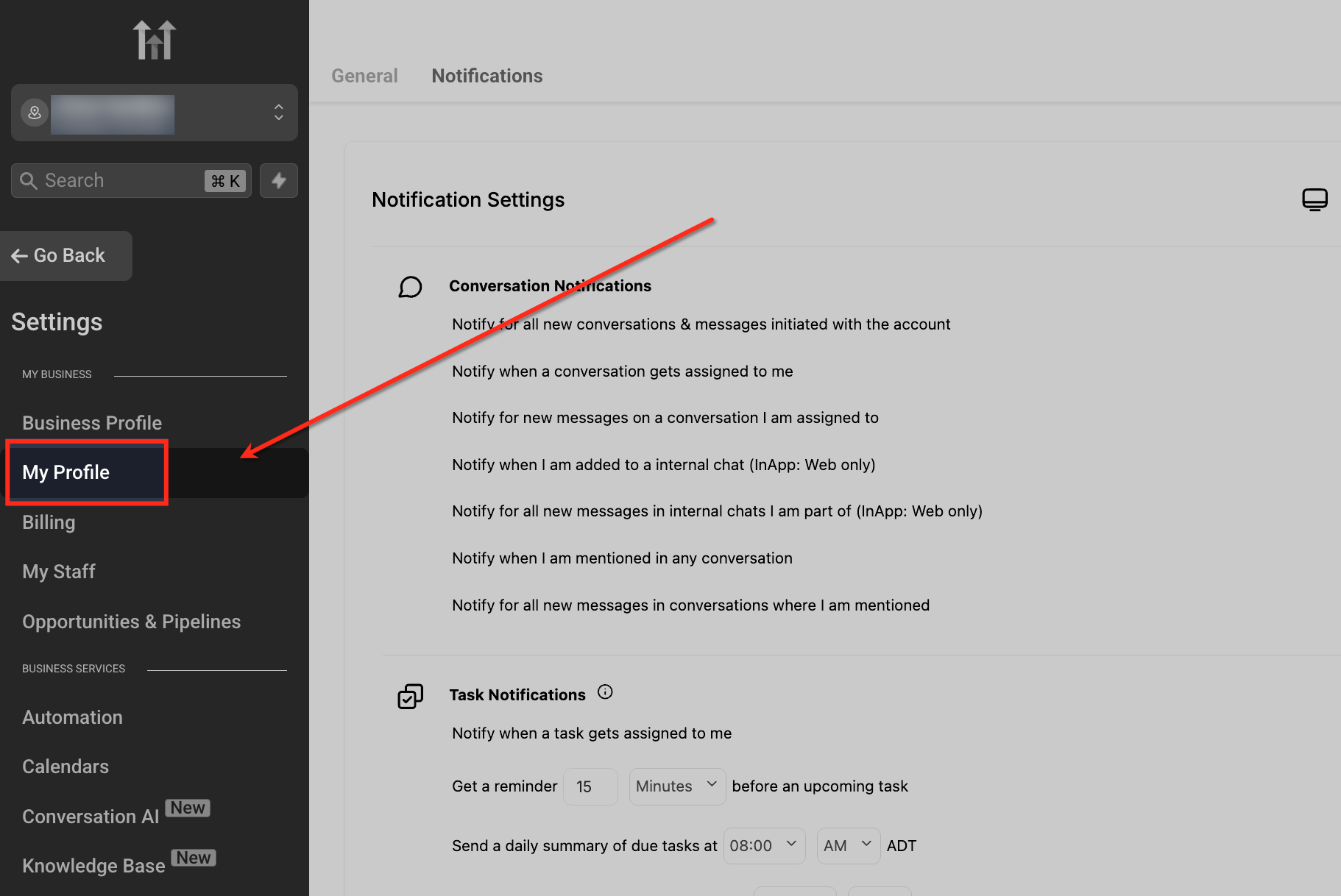
Under the Settings menu, click on My Profile. This section lets you access and customize your notification preferences for conversations, tasks, and other events.
Select Notifications Tab
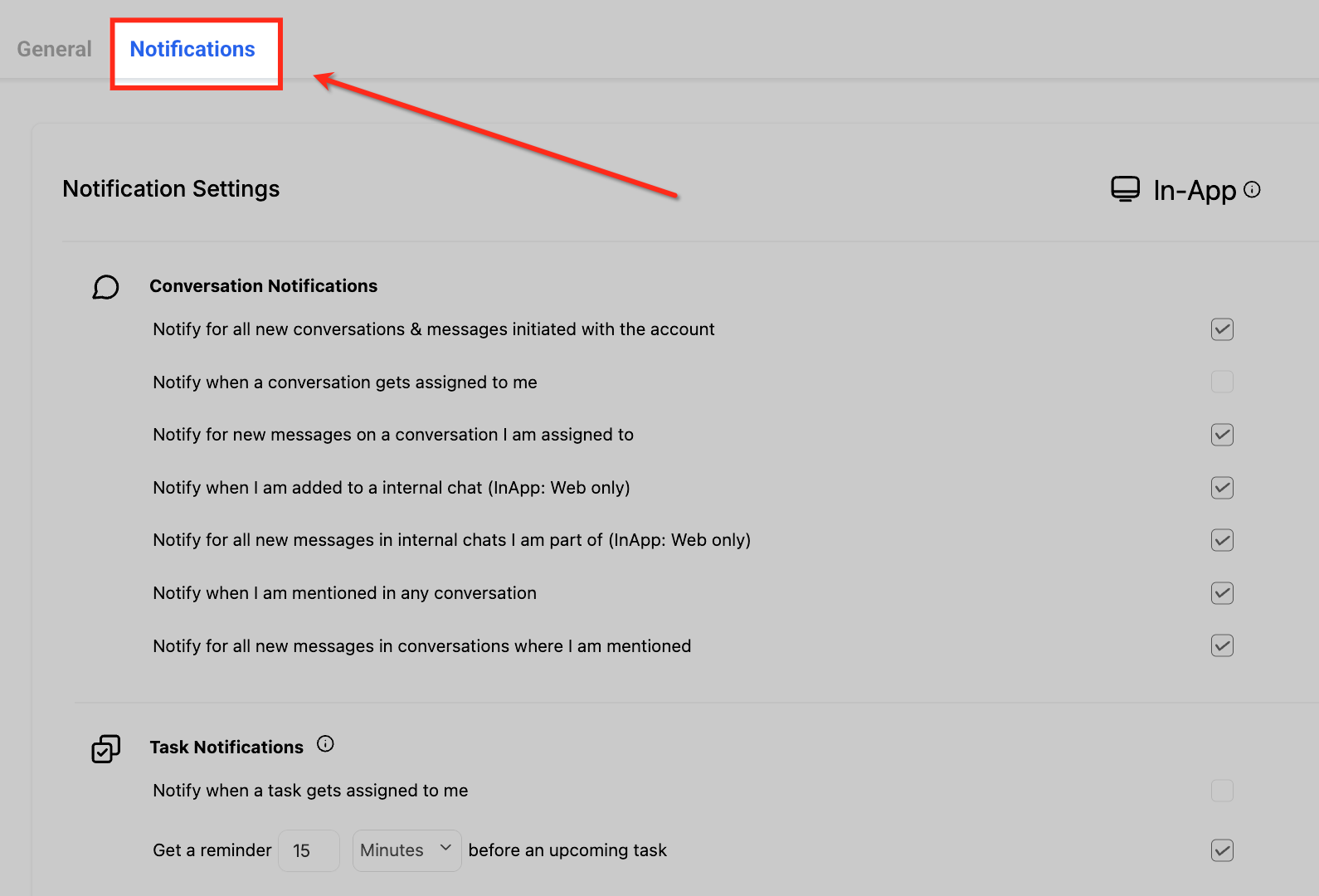
Select the Notifications tab at the top of your profile settings. This tab contains all your notification preferences, organized by category and channel.
Choose Notification Channels
For each notification type, choose your preferred delivery method: In-App, Email, or SMS. You can combine channels based on how and where you wish to receive alerts.
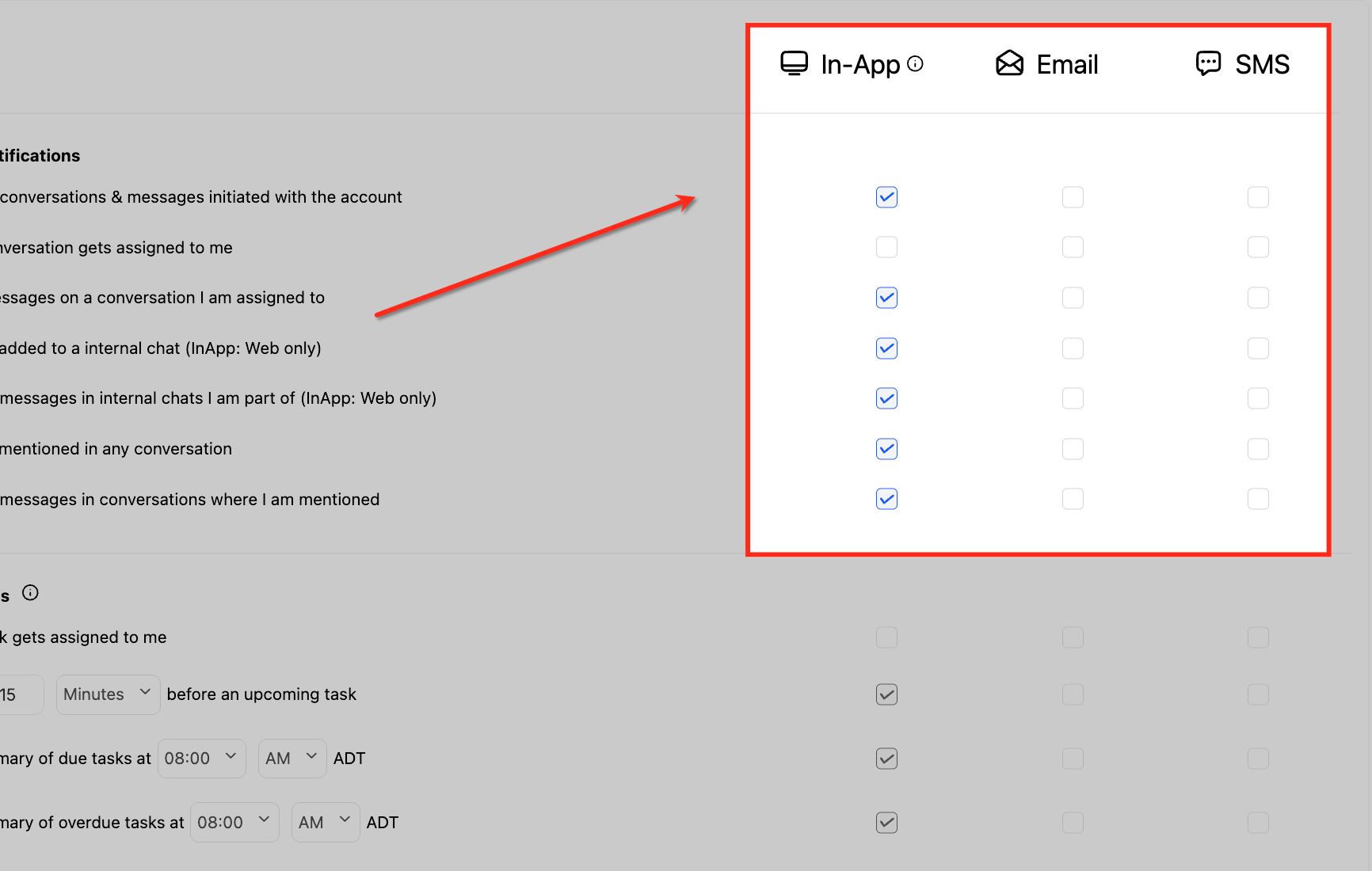
Save Your Preferences
Once you have configured your notification settings, click the Save button at the bottom right to apply your changes and update your preferences.
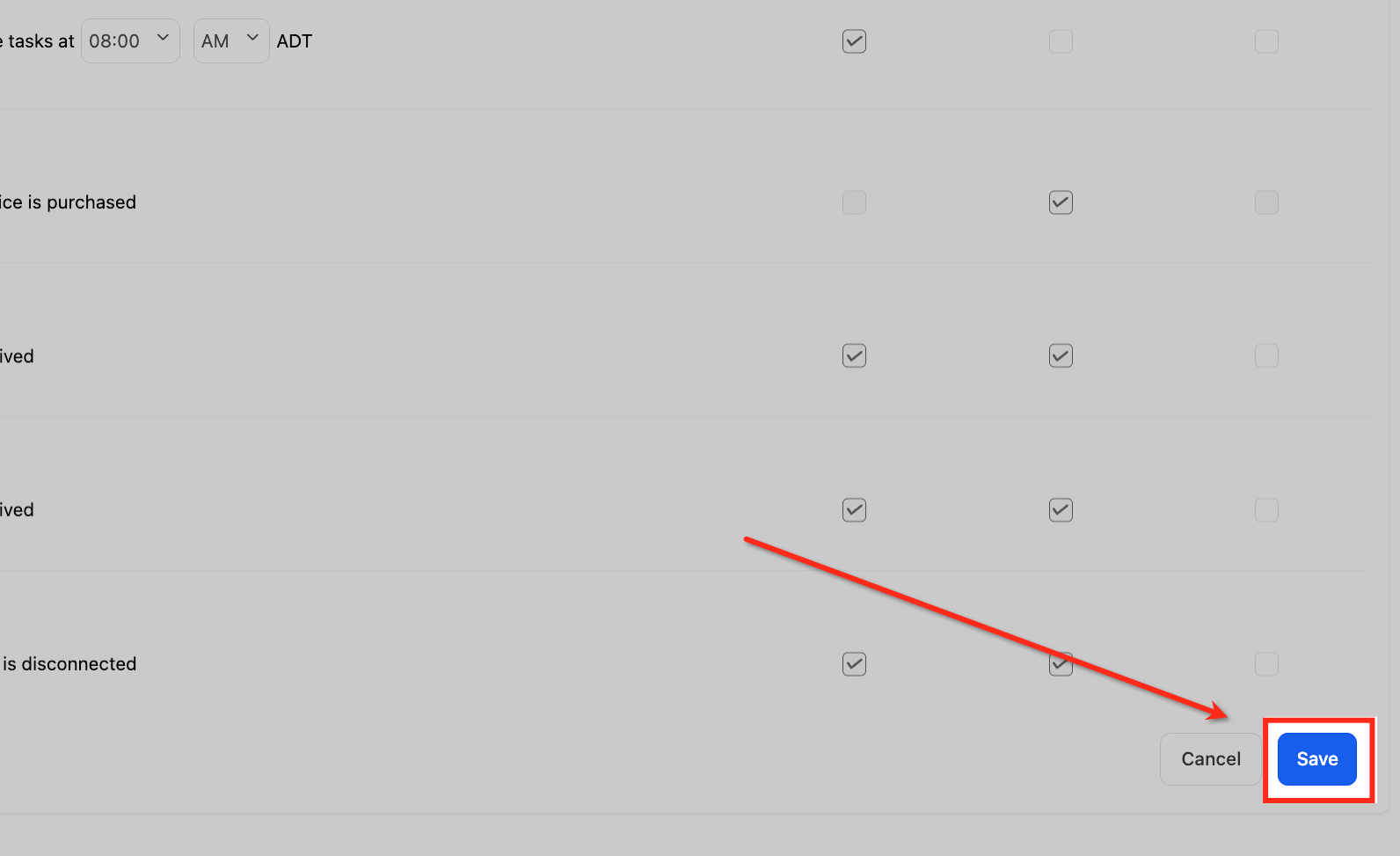
Note: You must be added to a sub-account to receive its notifications. Users with only “Assigned Data” permissions will not receive alerts about unassigned leads.
Notification Click-to-Redirect
When a notification appears in the web app, you can click it to be redirected to the source of that notification.
This table explains how the redirect feature works:
| Serial# | Category | Notification type | Available for | Channels Supported | Redirect To |
|---|---|---|---|---|---|
| 1 | Conversations | Notification for all new conversations and messages initiated with the account | Admin & Users | Web, Desktop, Mobile | Sub Account > Conversations > Conversation tile |
| 2 | Conversations | Notification when a conversation gets assigned to me | Admin & Users | Web, Desktop, Mobile | Sub Account> Conversations > Conversation tile |
| 3 | Conversations | Notification for new messages on a conversation I am assigned to | Admin & Users | Web, Desktop, Mobile | Sub Account> Conversations > Conversation tile > Message |
| 4 | Task | Notification when a task gets assigned to me | Admin & Users | Web, Desktop, Mobile | Sub Account> Contacts > Tasks |
| 5 | Task | Get a reminder <X> mins/hours/days before an upcoming task (assigned to me) | Admin & Users | Web, Desktop, Mobile | Sub Account> Tasks |
| 6 | Task | Send a daily summary of due tasks at HH:MM | Admin & Users | Web, Desktop, Mobile | Sub Account> Tasks |
| 7 | Task | Send a daily summary of overdue tasks at HH:MM | Admin & Users | Web, Desktop, Mobile | Sub Account> Tasks |
| 8 | Calendar | Notification for all new appointments booked with the account | Admin & User | Web, Desktop, Mobile, Email | Sub Account > Calendars |
| 9 | Calendar | Notification when a new appointment gets assigned to me | Admin & Users | Web, Desktop, Mobile, Email | Sub Account> Calendars |
| 10 | Calendar | Get a reminder “15/30/45/60” mins before an upcoming appointment (assigned to me) | Admin & Users | Web, Desktop, Mobile | Sub Account> Calendars |
| 11 | Website Integration | Notification when new website service is purchased | Admin | NA | |
| 12 | Social Media | Notification when a new review is received | Admin & Users (TBC) | Web, Mobile (existing) | Sub Account> Conversations > Conversation tile |
| 13 | Review Platforms | Notify when a new review is received | Admin & Users (TBC) | Web, Mobile (existing) | Sub Account> Conversations > Conversation tile |
Adding Users to a Sub-Account
Users must be added to a sub-account to receive its notifications.
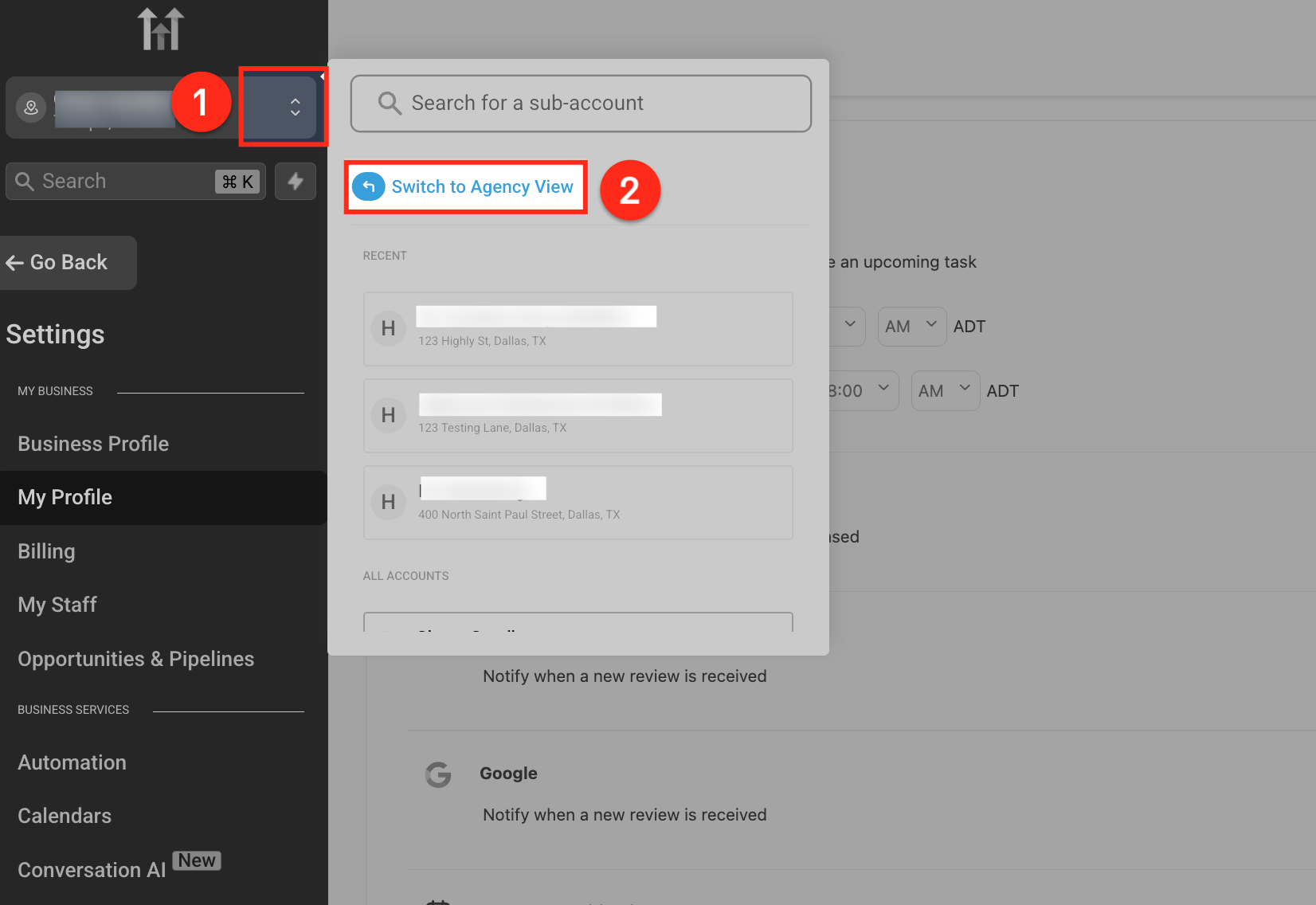
Switch to Agency View
Click the account switcher dropdown (1) and select Switch to Agency View (2). This action allows you to manage users and permissions at the agency level, which includes assigning sub-accounts for notifications.
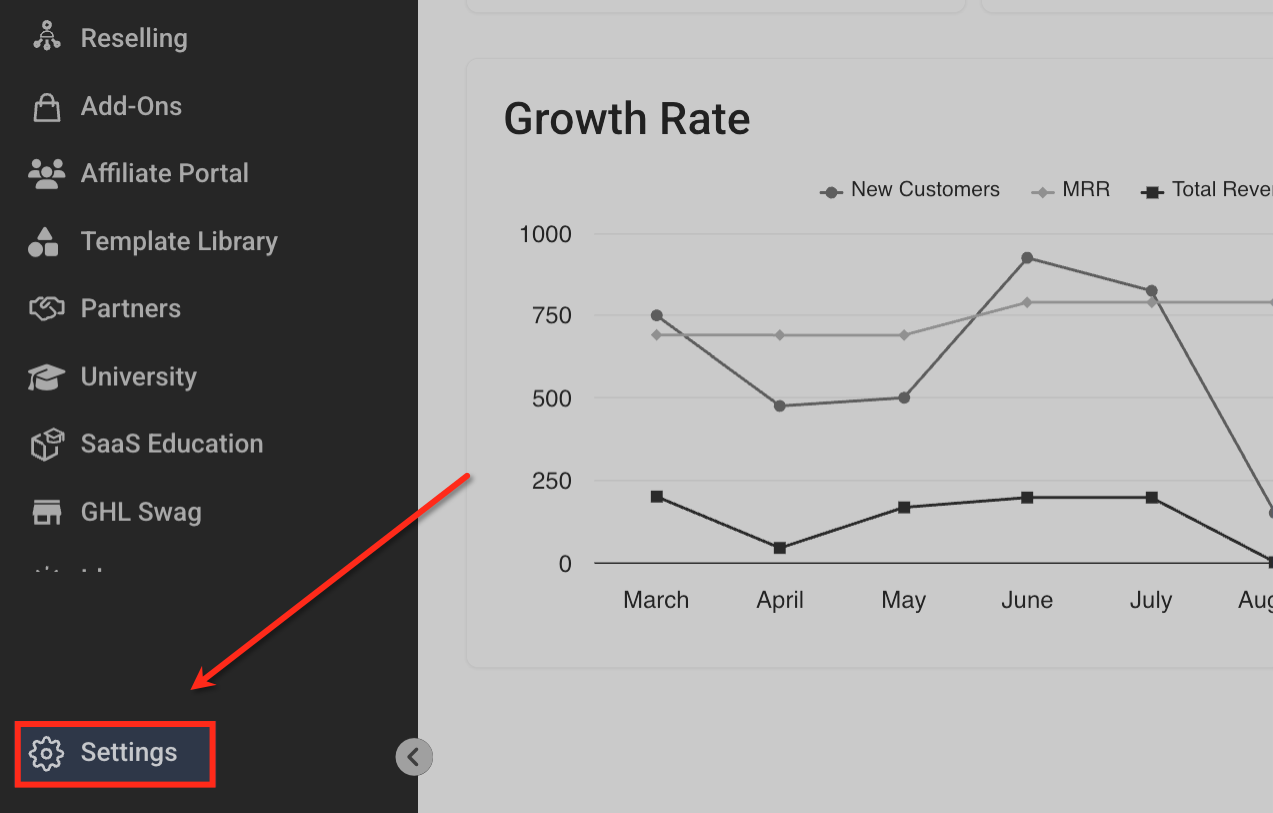
Open Agency Settings
While in Agency View, click Settings on the left-hand navigation menu. This section is for managing agency-level users, permissions, and sub-account access.
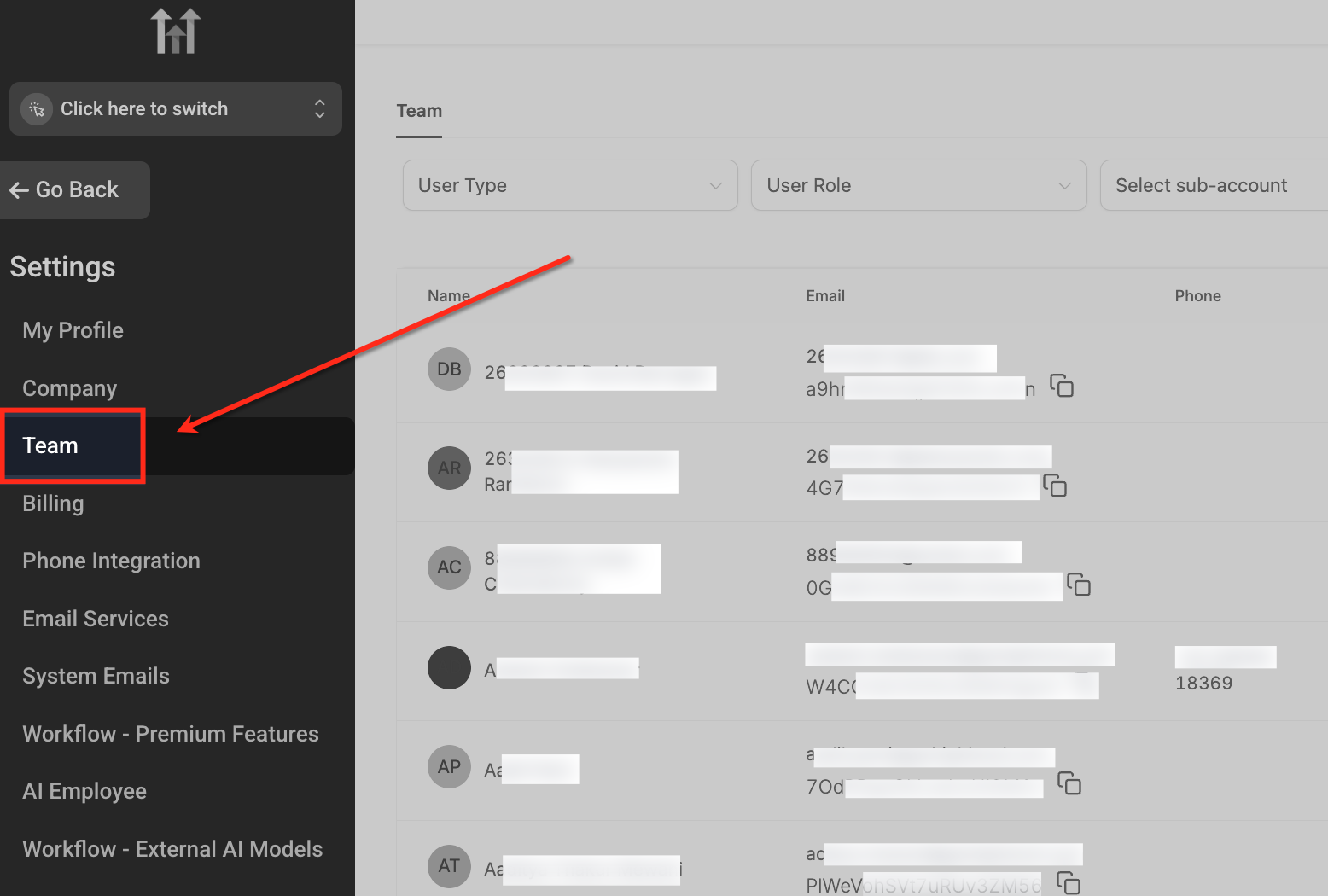
Navigate to Team Settings
In the Agency Settings menu, click Team. Here, you can find a list of all users and manage their roles, permissions, and sub-account access.
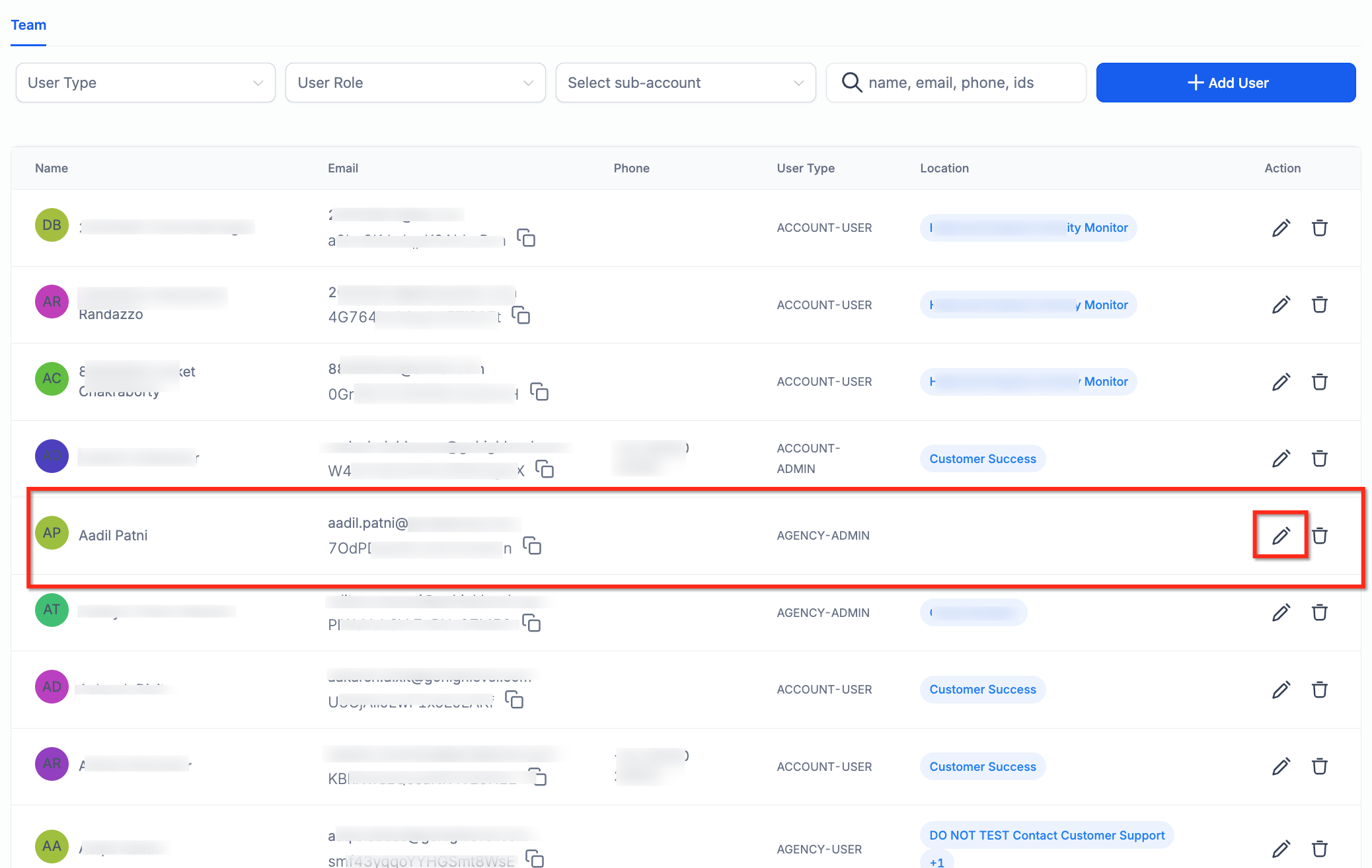
Edit User Permissions
Find the user you wish to update and click the pencil icon in the Action column. This will open their profile, where you can assign sub-accounts and set up notification access.
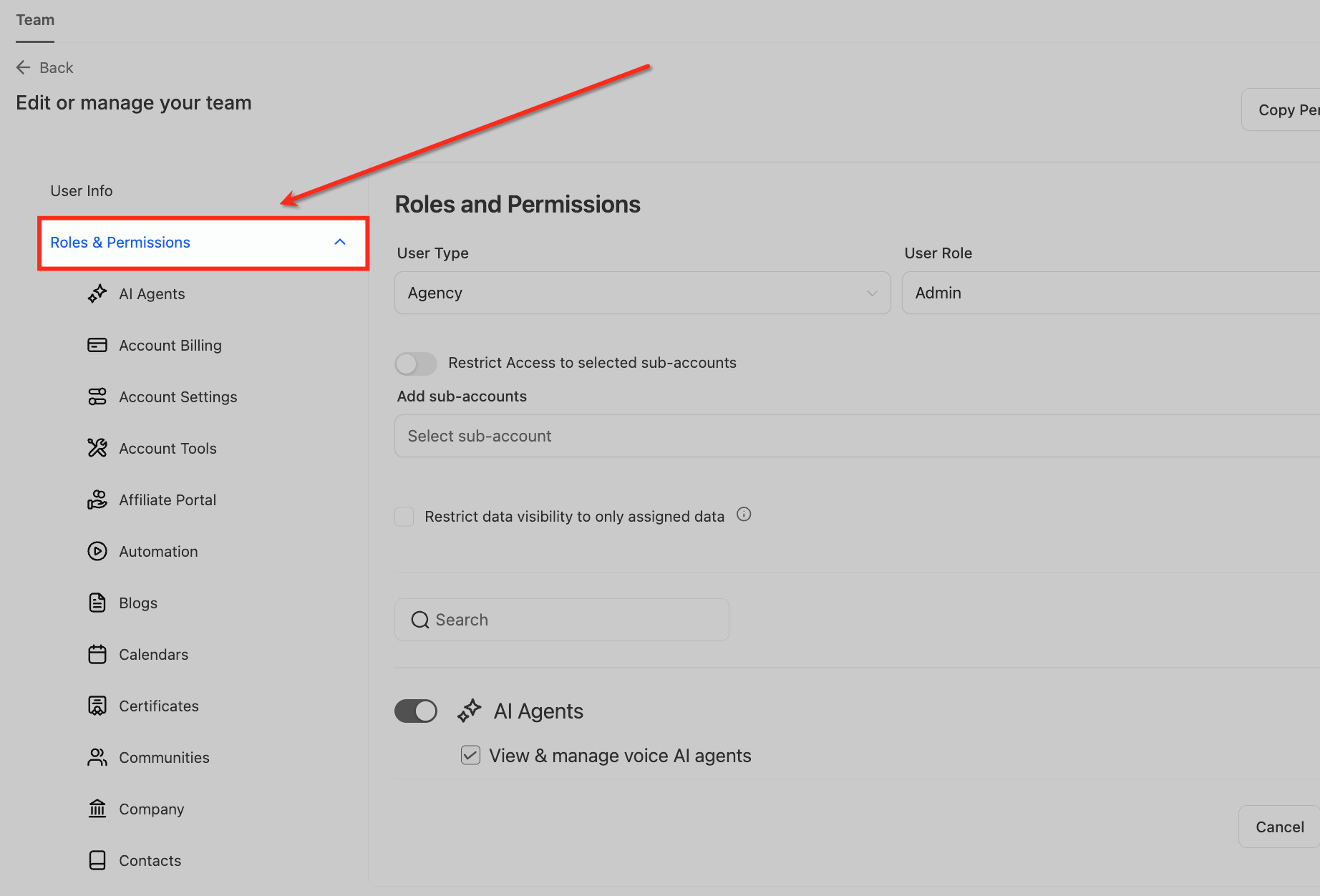
Select Roles & Permissions
In the user's profile panel, select Roles & Permissions from the left sidebar. This area enables you to assign sub-account access, define user roles, and manage the permission settings required for receiving notifications.
Add Sub-Accounts
In the Add sub-accounts field, select the sub-accounts the user needs access to. After being added, the user can receive notifications from these sub-accounts.
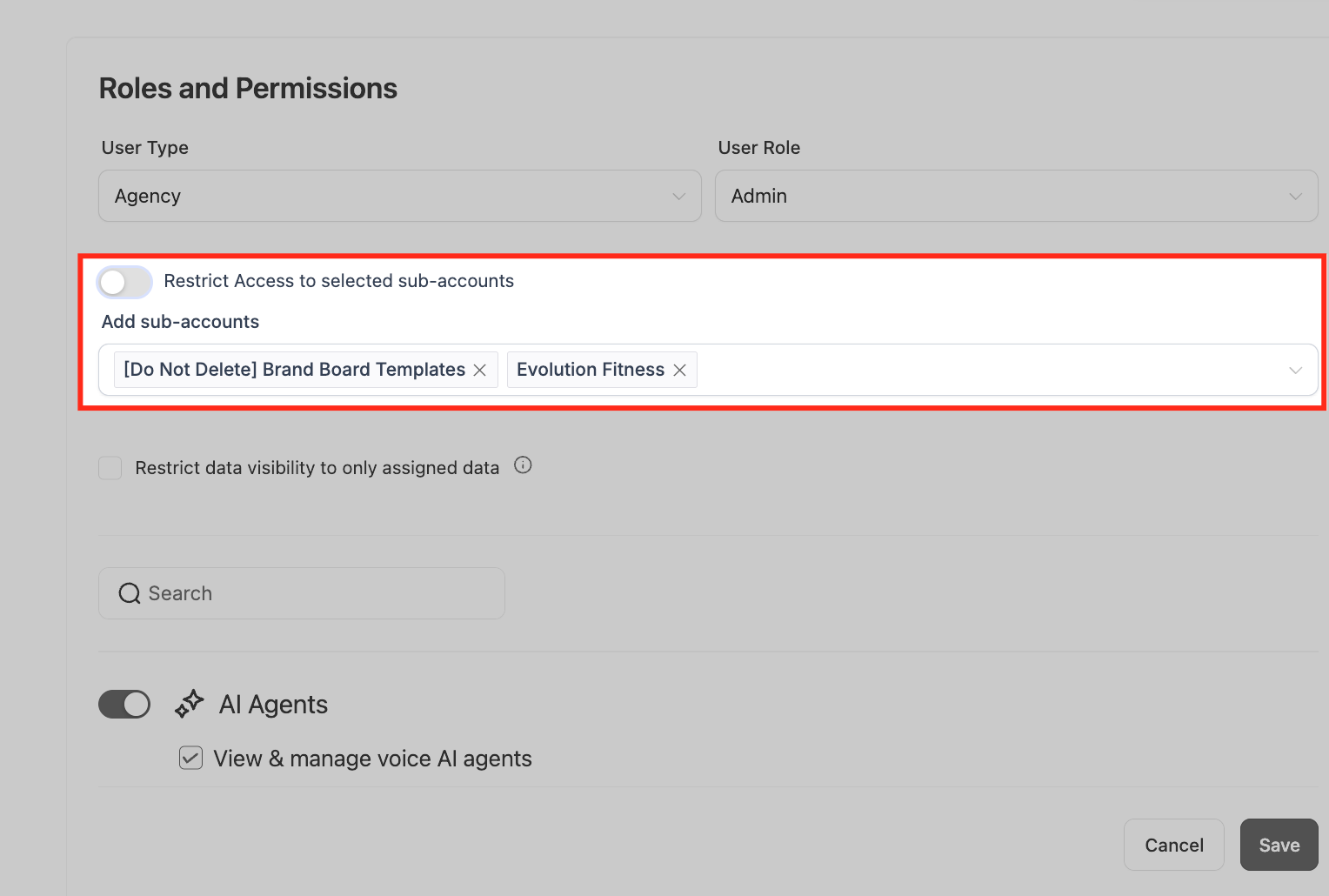
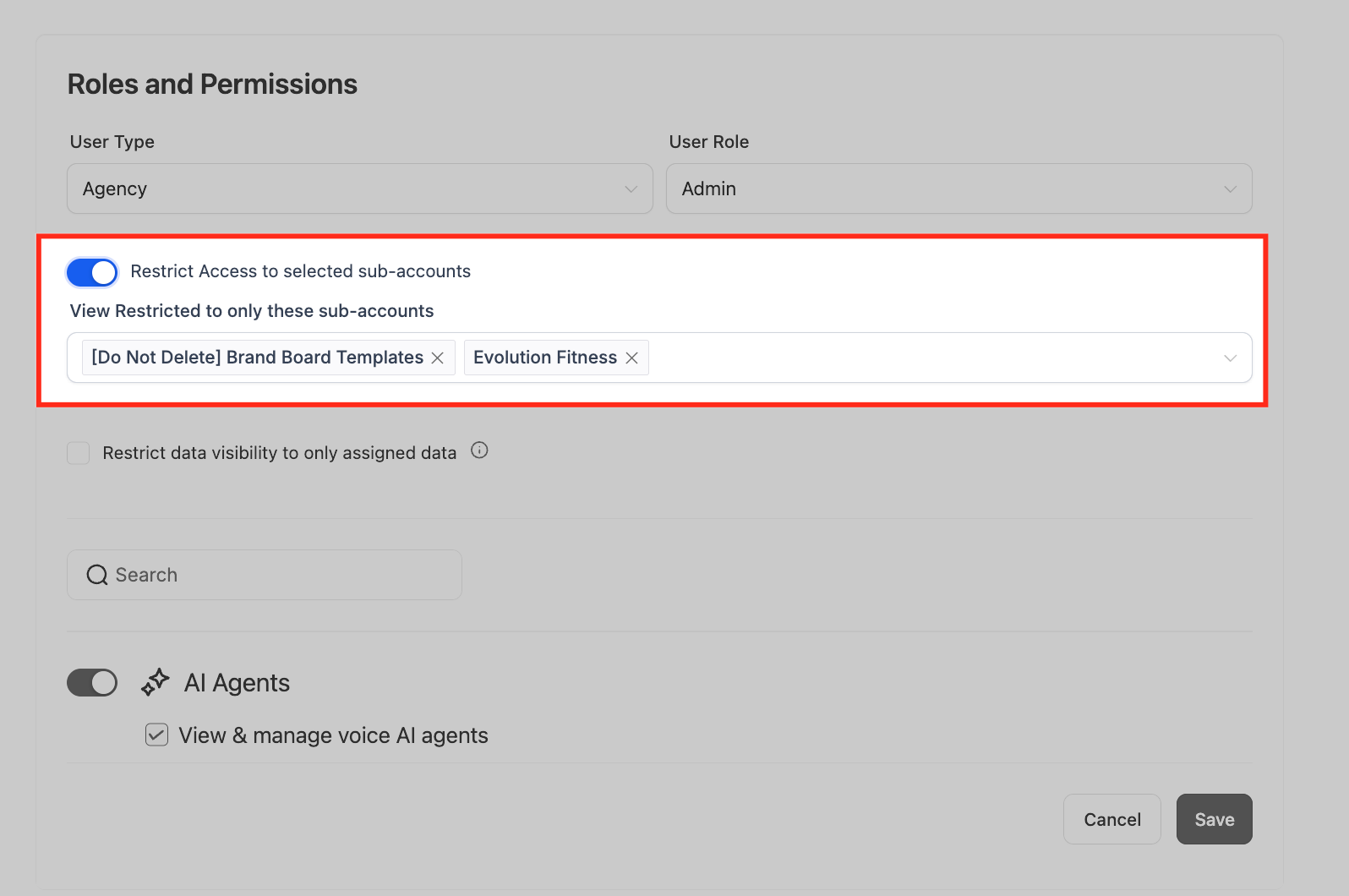
Restrict Access (Optional)
Enable the Restrict Access to selected sub-accounts toggle if you want to limit the user's access to only the specified accounts. This ensures they will only receive notifications for these designated sub-accounts.
After saving, the user can go to the sub-account > Settings > My Profile > Notifications to manage their preferences.
Frequently Asked Questions
Q: How does the “Mark all as read” button work?
A: This button marks all of the user's current notifications as read.
Q: Why do I receive duplicate notifications for the same message?
A: Duplicate notifications can occur when multiple triggers are active for the same event (e.g., 'assigned to me' and 'new message'). To resolve this, review your notification settings and disable any overlapping options.
Q: What does the “Clear All” button do?
A: This button removes all existing notifications from your view. New notifications will appear as they come in. Please note that cleared notifications cannot be recovered.
