

Setting Up Working Hours for Your AI Employee
This guide explains how to set and manage the working hours for your Voice AI. By defining specific hours, you can ensure your AI tool is available to assist customers at times that best suit your business operations. You'll learn how to customize availability for various services, such as customer support or virtual assistance, to optimize your AI's responsiveness and efficiency. This allows you to provide seamless service to users at the right times, without interruptions or delays.
What are Voice AI Working Hours?
This feature enables you to set specific working hours for your AI employees, including selecting the days of the week and the hours for each day.
Why You Should Use AI Voice Working Hours
Defining working hours for your AI voice assistant helps you control when it is active and responsive. This ensures the AI is available during peak business times and prevents unnecessary interruptions during off-hours. By aligning the AI's availability with your schedule, you can enhance efficiency, minimize errors, and maintain consistent service quality without overloading the system.
How to Enable Voice AI Working Hours
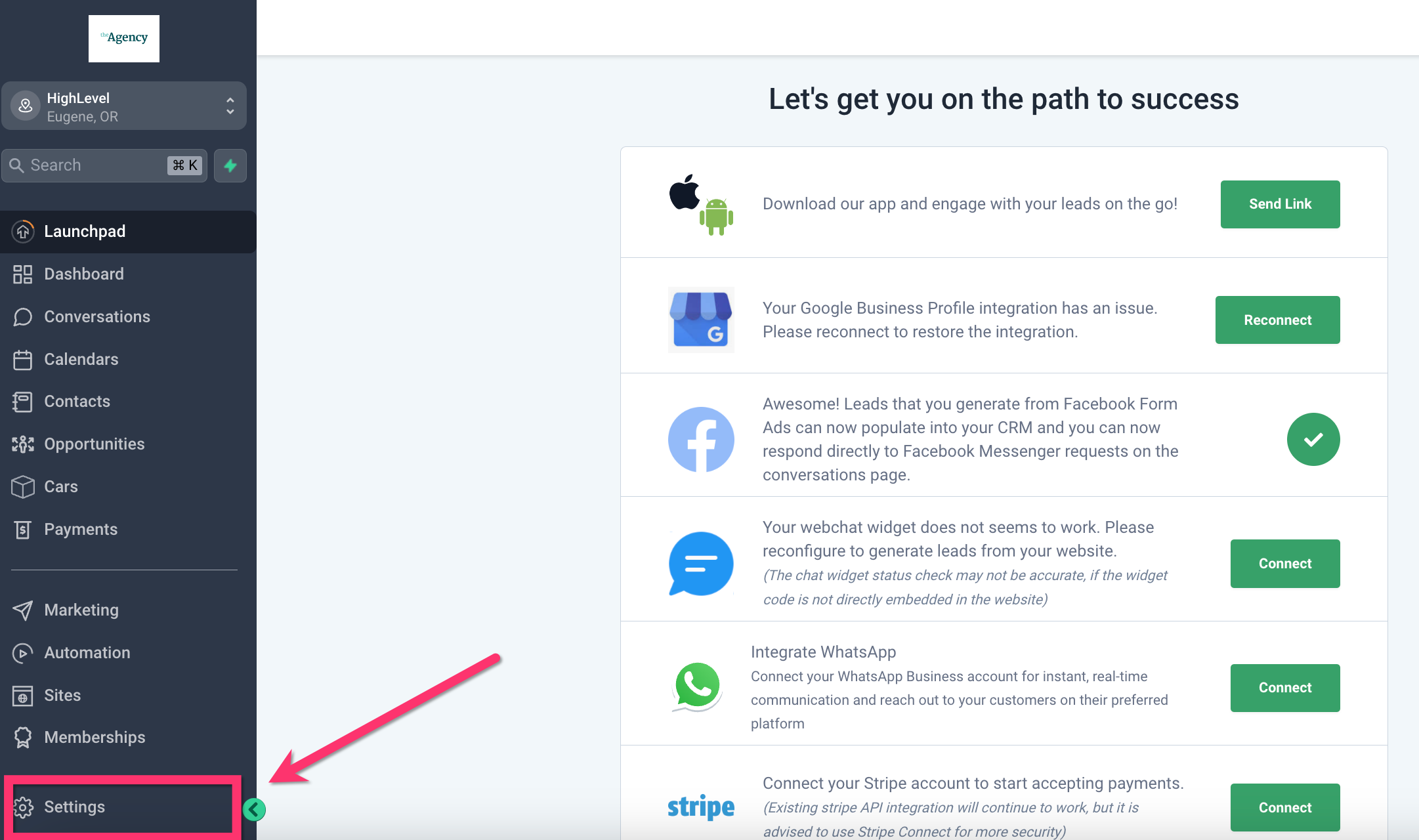
Step 1: Locate AI Agents
You can find your AI Agents in Settings > Voice AI Agents.
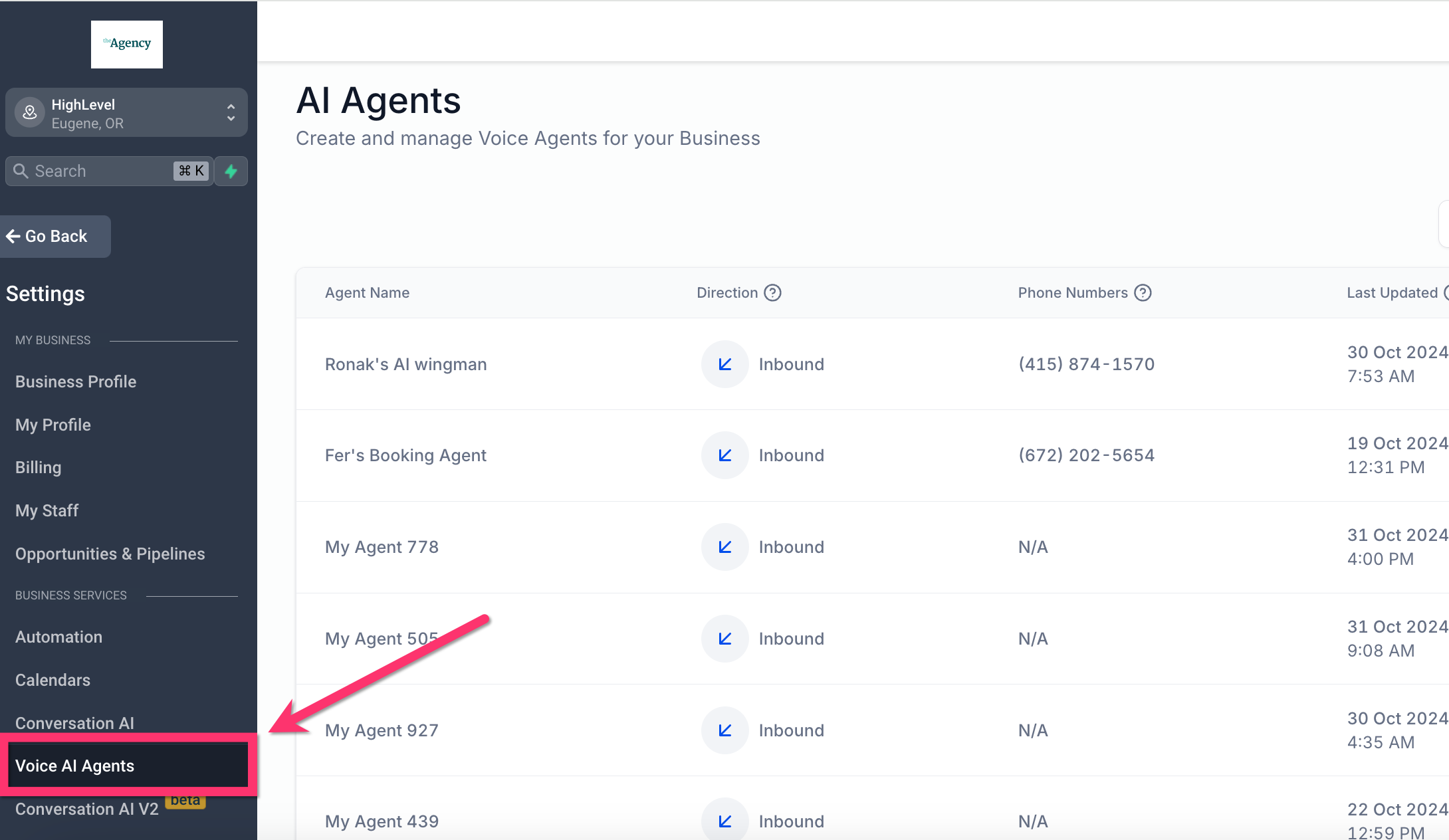
Step 2: Select Voice AI Agents
Choose the specific Voice AI Agent you want to configure.
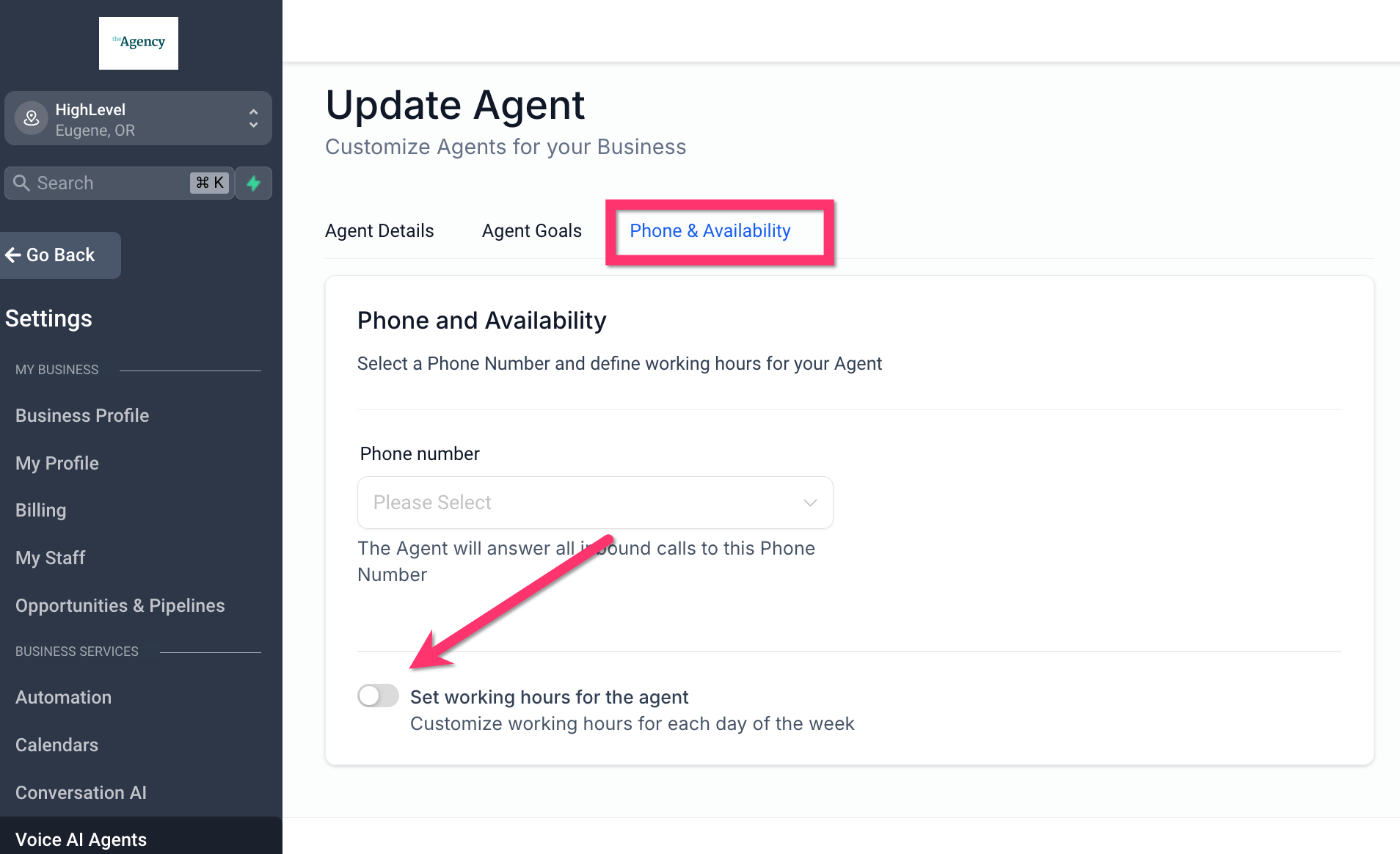
Step 3: Navigate to Phone & Availability
Select the Phone & Availability tab.
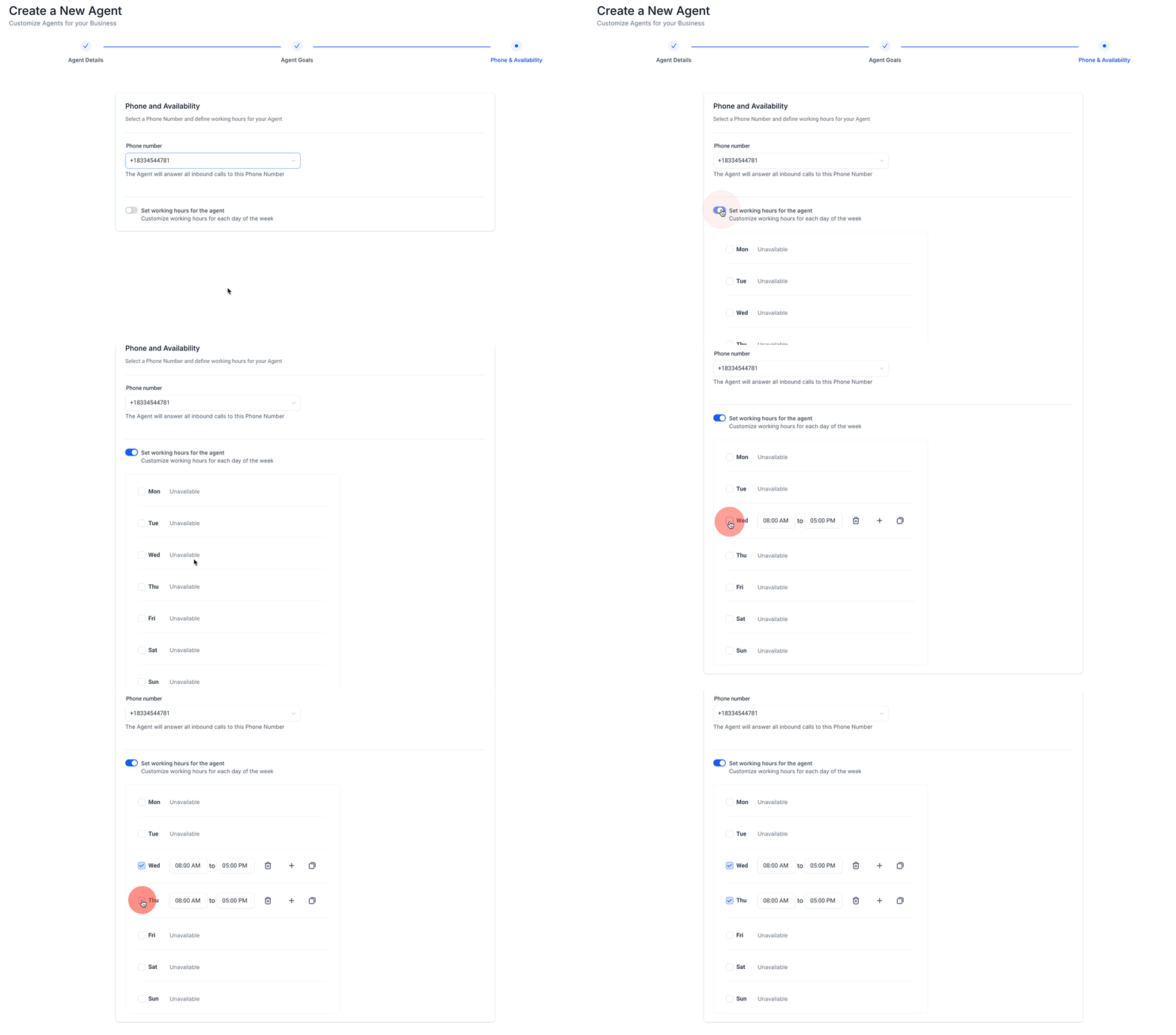
Step 4: Enable and Configure Working Hours
Toggle the switch to enable 'Set working hours for the agent.' Then, select the desired days and times, and click Save.
Frequently Asked Questions
1. Can I set different working hours for different AI tasks or roles?
Yes, you can set different working hours for various functions within your Voice AI system, such as customer support, lead generation, or appointment scheduling. This allows you to customize availability based on the type of interaction.
2. What happens if a user tries to interact with the AI outside of the set working hours?
If a user attempts to engage with the AI outside its defined working hours, the system can be configured to respond with a custom message, redirect them to an alternative support channel, or simply inform them that the service is unavailable.
3. Can I set working hours for specific days of the week?
Yes, you can define working hours for specific days. For example, you might set your AI to be available from 9 AM to 5 PM on weekdays and have limited hours on weekends, or even set different hours for holidays.
4. Will the AI automatically update its availability if my working hours change?
No, the AI will not automatically update its schedule. You will need to manually adjust the working hours in the settings if your schedule changes.
5. Can I use working hours to control when the AI sends notifications or follow-up messages?
Yes, you can use the working hours feature to control when the AI sends notifications, follow-ups, or reminders, ensuring these messages are delivered only during appropriate business hours.
6. Can the AI handle urgent requests outside of working hours?
While the AI can manage non-urgent inquiries outside of working hours with an automated response, it typically cannot process urgent requests unless a specific protocol or override for after-hours situations is configured.
7. Can I use different time zones for my AI’s working hours?
Yes, you can set working hours in different time zones, which is particularly useful if you serve customers across various regions. Ensure the correct time zone is selected when defining the schedule.
