

Testing Voice AI Agents in Metanow CRM: Calls and Logs
What are Test Calls for Voice AI Agents?
Test Calls allow you to simulate live conversations with your Voice AI agent before it goes live. You can either receive a Phone Call from the agent to your number or initiate a Web Call directly within your browser. Both methods are designed to help you verify agent behavior, fine-tune prompts, and confirm actions. Please note that during Web Call trials, call transfer functionality is not supported, and the session will use your logged-in contact as the caller's identity.
Key Benefits of Test Calls
Leverage these benefits to accelerate your setup process, minimize issues, and enhance the quality of your agent before launch.
- Accelerated Testing: Instantly start a Web Call without needing to purchase or dial a phone number.
- Authentic Validation: Utilize the Phone Call method to test the complete end-to-end telephony behavior.
- Rapid Feedback: Hear your agent's responses in real-time, allowing for immediate refinement of prompts, knowledge, and settings.
- High Feature Parity: Test nearly all agent actions during trials, with the exception of call transfers in Web Calls.
- Clear Caller Identity: Web Calls automatically map the session to the logged-in user’s contact for consistent context.
- Clean Test Data: Keep trial activities separate from your analytics dashboards, allowing you to focus on production insights.
How to Set Up Test Calls (Web Call & Phone Call)
Follow these steps to conduct reliable trials and ensure your browser and telephony settings are correctly configured.
Type 1: Start a Web Call
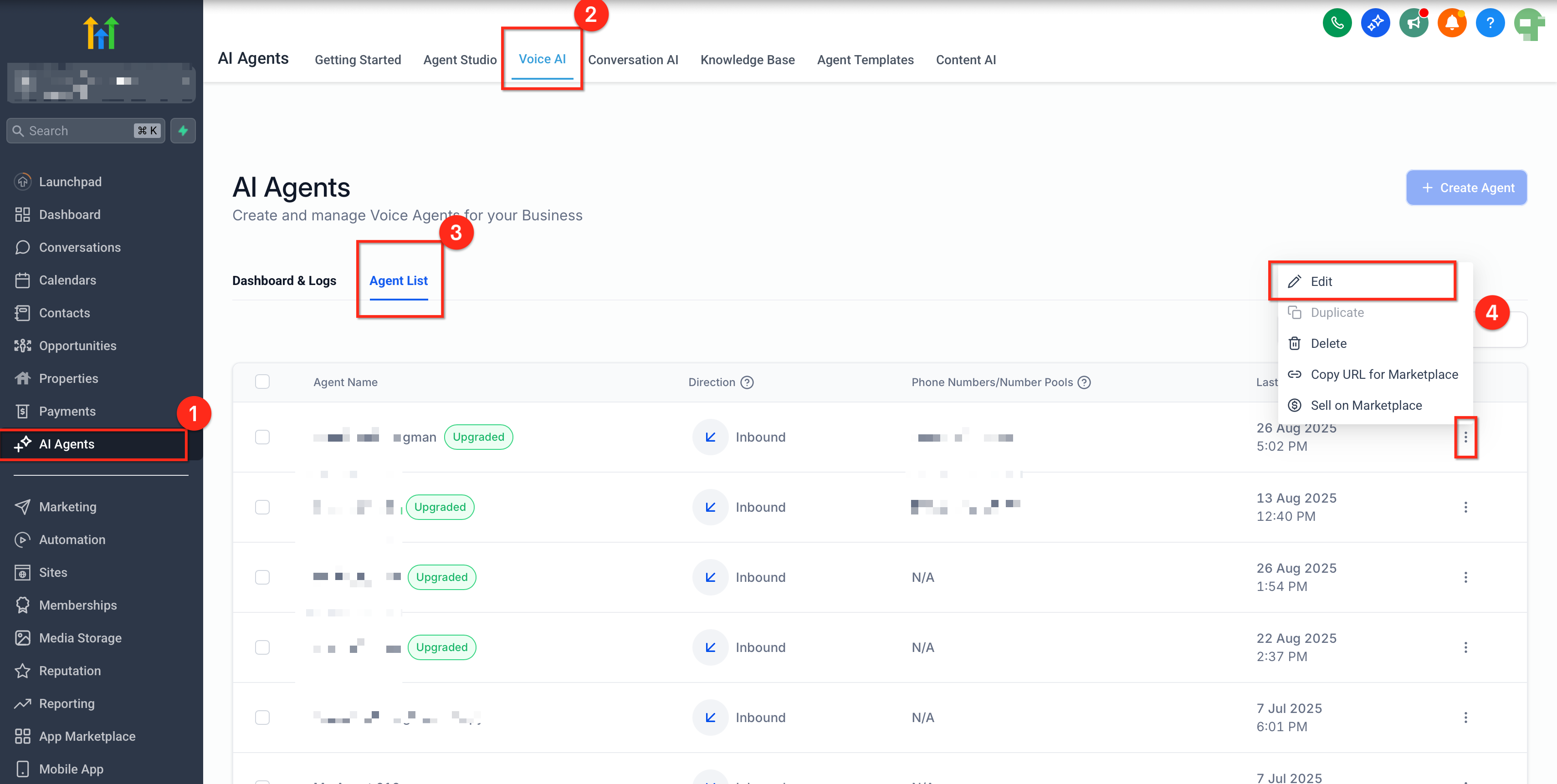
- Navigate to AI Agents from the left sidebar and click on Voice AI in the top navigation ribbon.
- Select Agent List in the secondary navigation ribbon, then choose to edit the agent you wish to test.
 ol start=3>
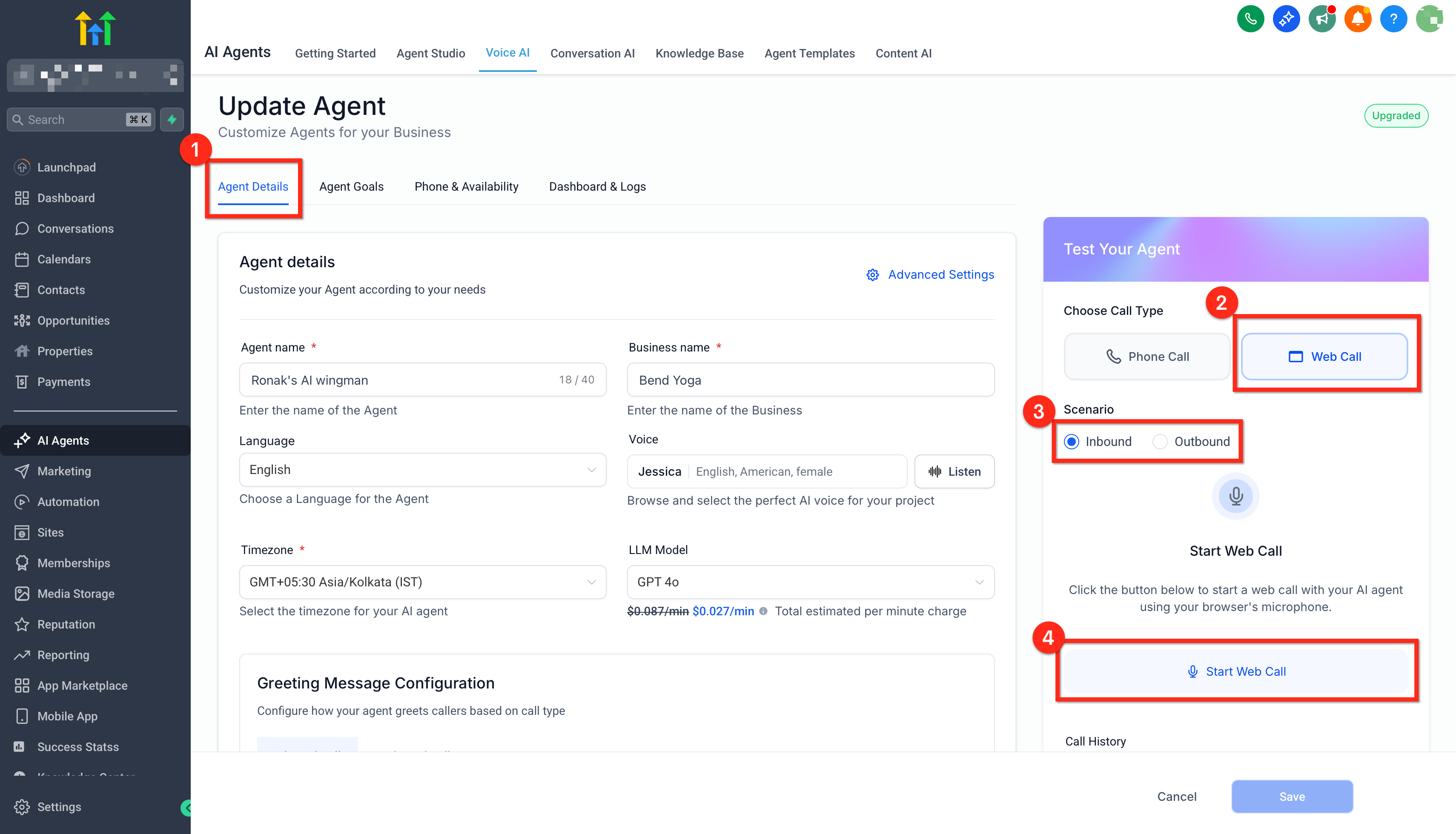 ol start=4>
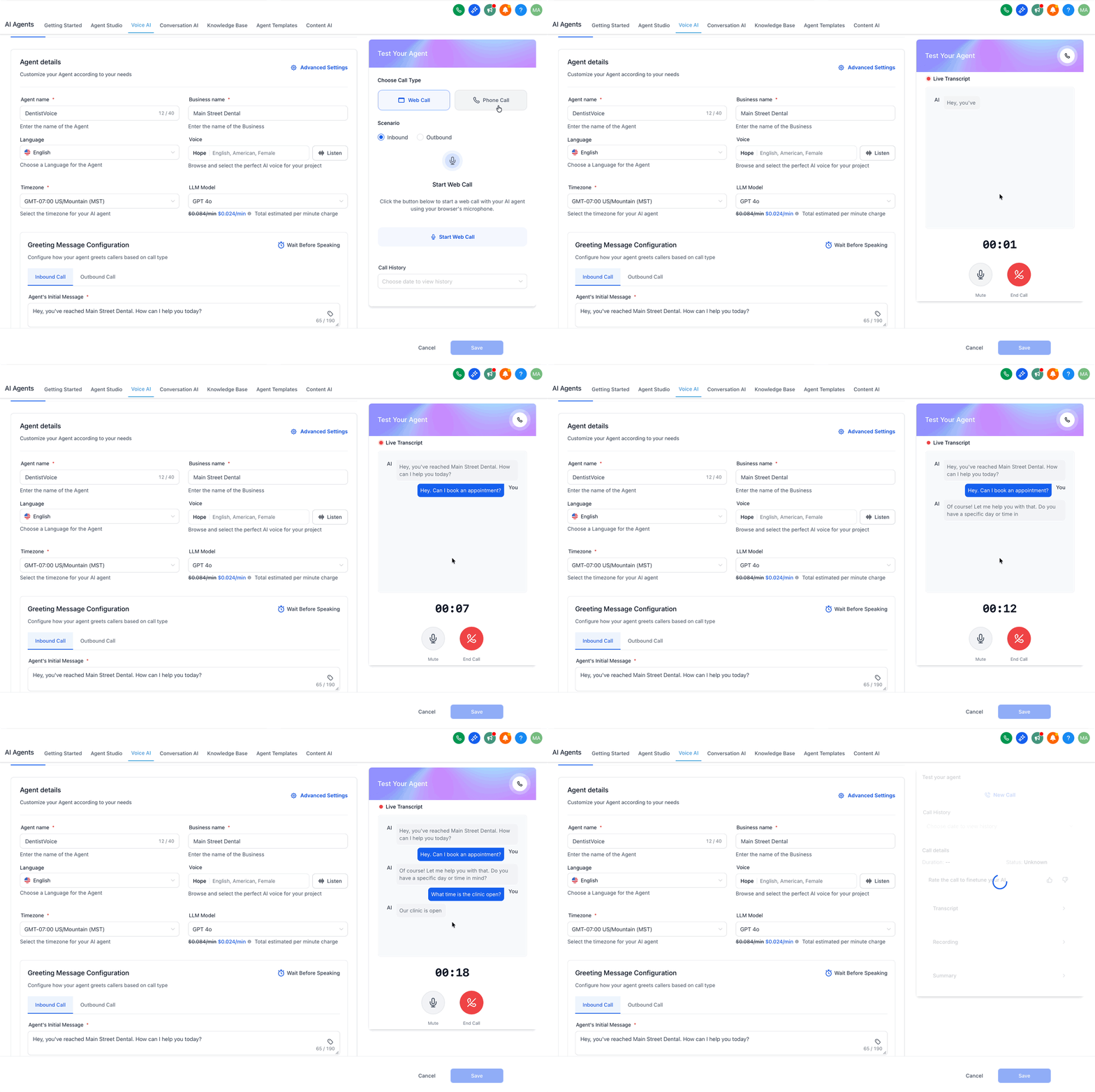 ol start=6>
Note:
- Faster Testing: No need to dial or purchase a phone number. Simply click to start testing immediately.
- Functionality: This opens a browser-based call, allowing you to speak with the agent instantly.
- Caller Identity: The system automatically uses the logged-in user’s contact information.
- Limitations: Call transfer functionality is not supported during Web Call trials.
- Device Tips: Ensure you allow microphone access, confirm your input/output devices, and use an up-to-date browser for the best experience.
Type 2: Start a Phone Call
- Open AI Agents from the left sidebar and click on Voice AI in the top navigation ribbon.
- Select Agent List in the secondary navigation ribbon and edit the agent you want to test.
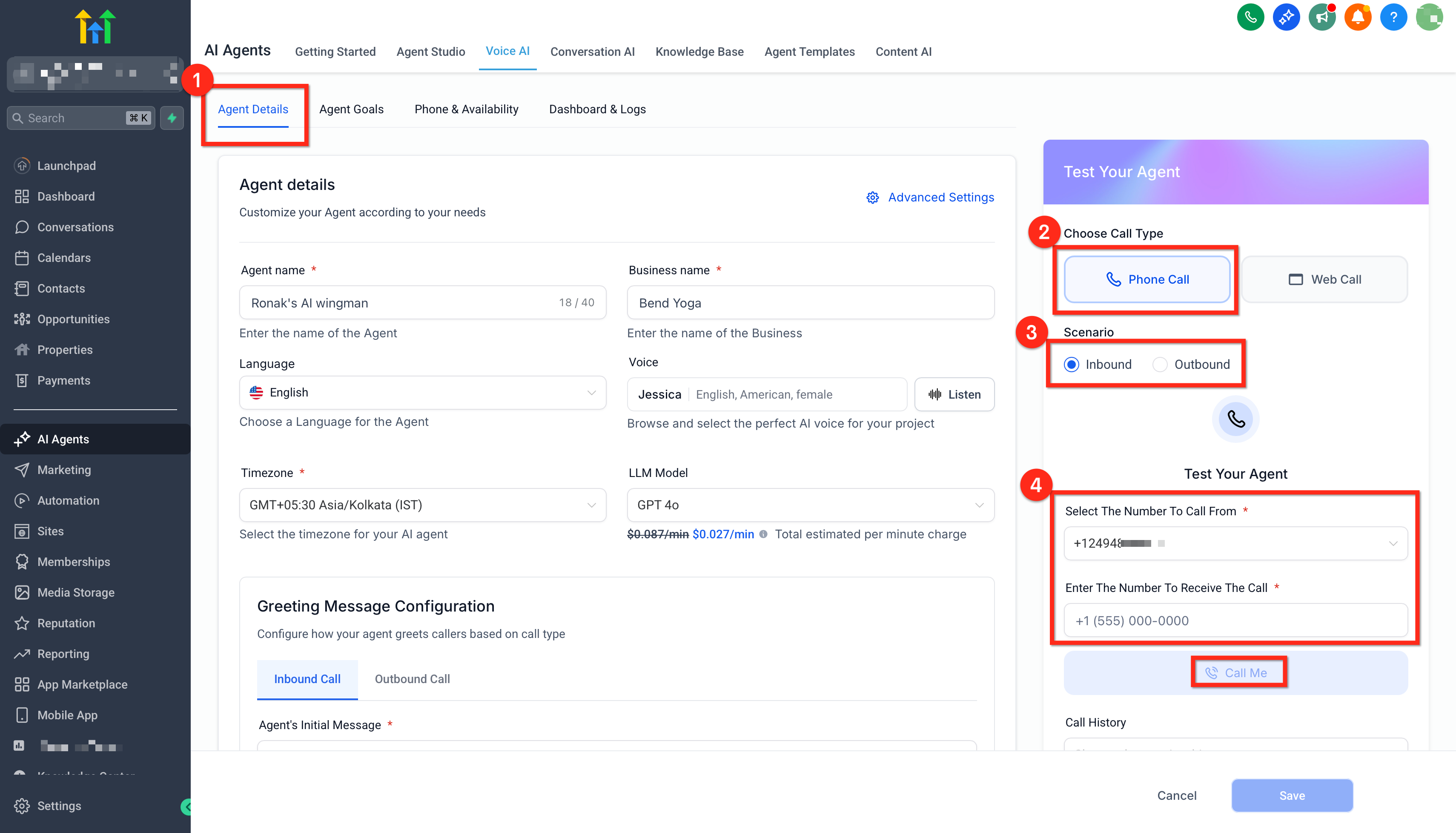
- In the Test Your Agent section on the right, click on Phone Call and choose your Scenario (Inbound or Outbound). Then, select a Caller ID (the number the agent will use to call you).
- Enter Your Phone Number where you will receive the test call.
- Click Call me to initiate the test and answer the incoming call on your device.
 ol start=6>
Note:
- Select Caller ID: Choose the phone number your agent will use for the outbound test call.
- Enter Your Phone Number: Provide the destination number to receive the call.
- Receive the Call: Answer and interact with the agent just as a real caller would.
- Billing Note: Phone-based test calls utilize your standard telephony setup; normal rates may apply.
Test Calls While Creating an Agent
You can also test a Voice AI agent during its creation process. In the Create Agent workflow, navigate to the Phone & Availability step and use the Test Your Agent panel to run Web Call and Phone Call trials. These tests function identically to other trials, providing access to Call History, transcripts, recordings, and summaries.
Test Call History & Logs
Learn where to find and review your test results for efficient iteration.
- Where to find: From the Test Your Agent panel, open Call History after a test call, OR navigate to Voice AI → Dashboards & Logs and filter by Call Type: Test.
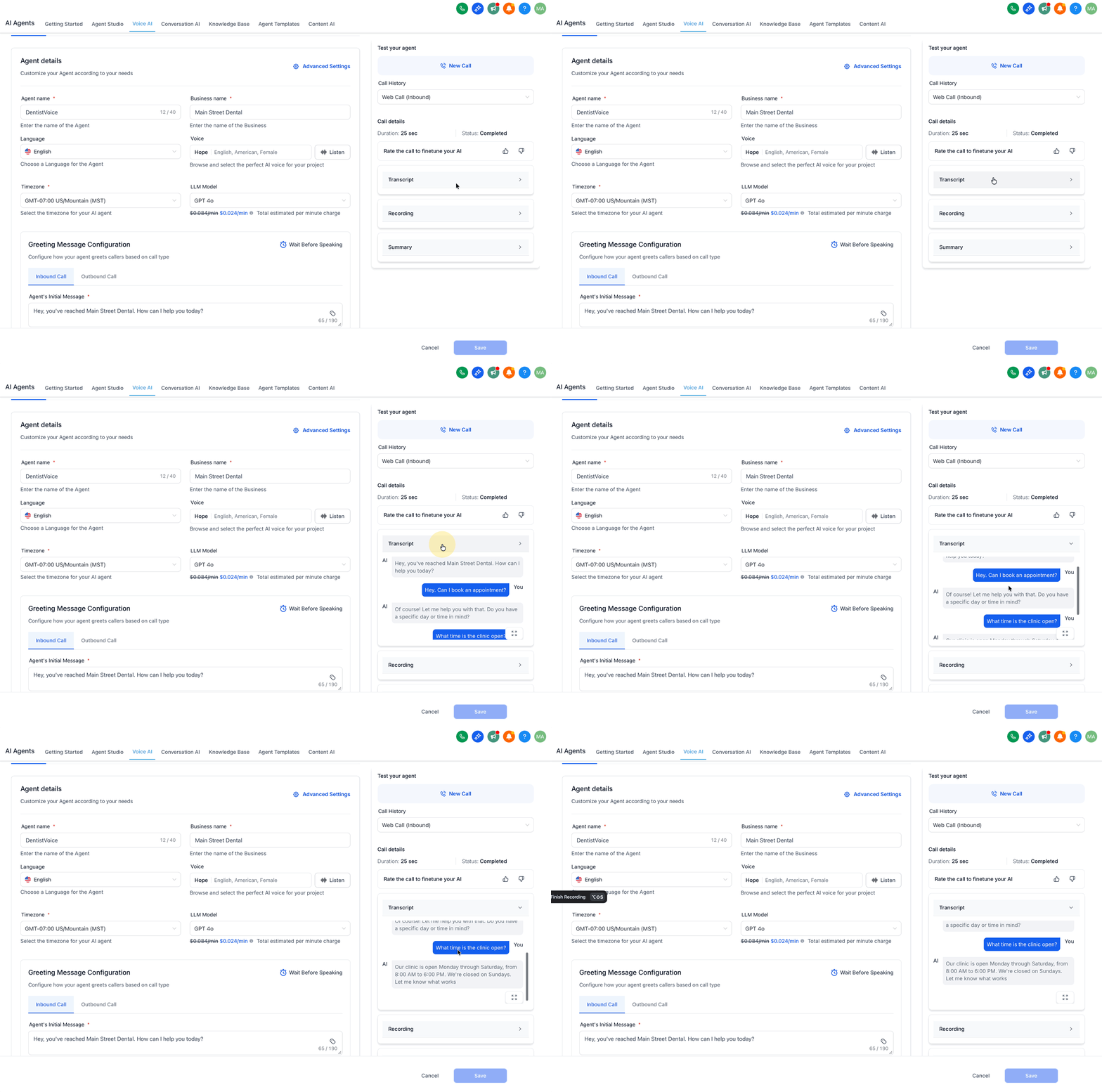
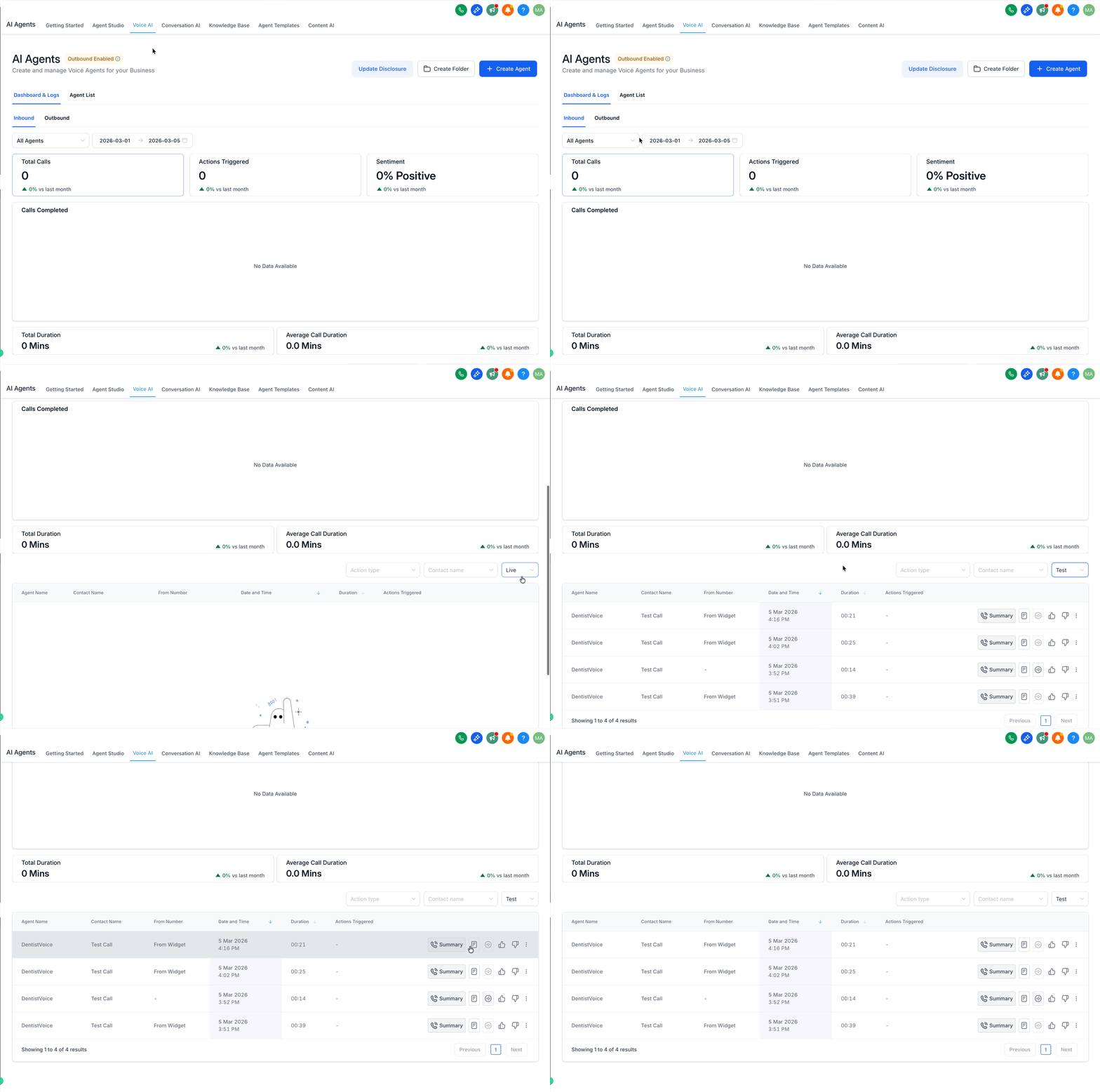
- What you’ll see: Key details such as Duration, Call Status (e.g., Completed/Missed), a full Transcript, Recording playback, and a Call Summary.
- Analytics Behavior: Test calls are intentionally excluded from Dashboard Analytics and Performance Metrics to keep your data clean.
Outbound Scenario Availability
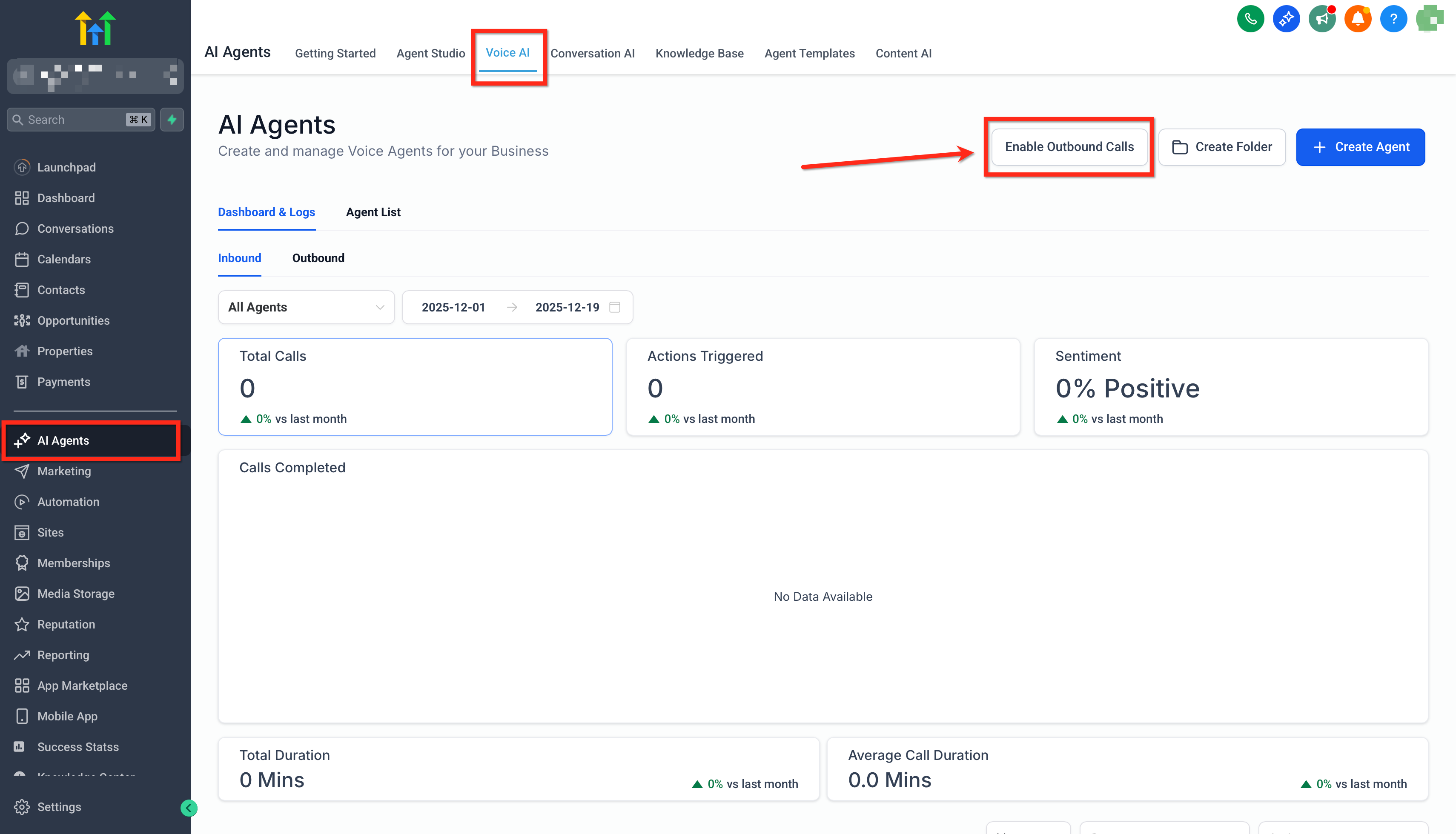
The Outbound Scenario is only available for sub-accounts approved for Voice AI outbound calling and compliance. If this option is not visible, go to AI Agents → Voice AI, click Enable Outbound Calls, and follow the steps to complete the registration.
Reviewing Test Call History
When testing your Voice AI Agent, you can review previous test calls to analyze the conversation and the agent's interaction with the caller. Use this reference to understand each field, diagnose issues more quickly, and confirm if your agent achieved its intended outcome. To access previous test calls, click the Call History dropdown and select the call you wish to review.
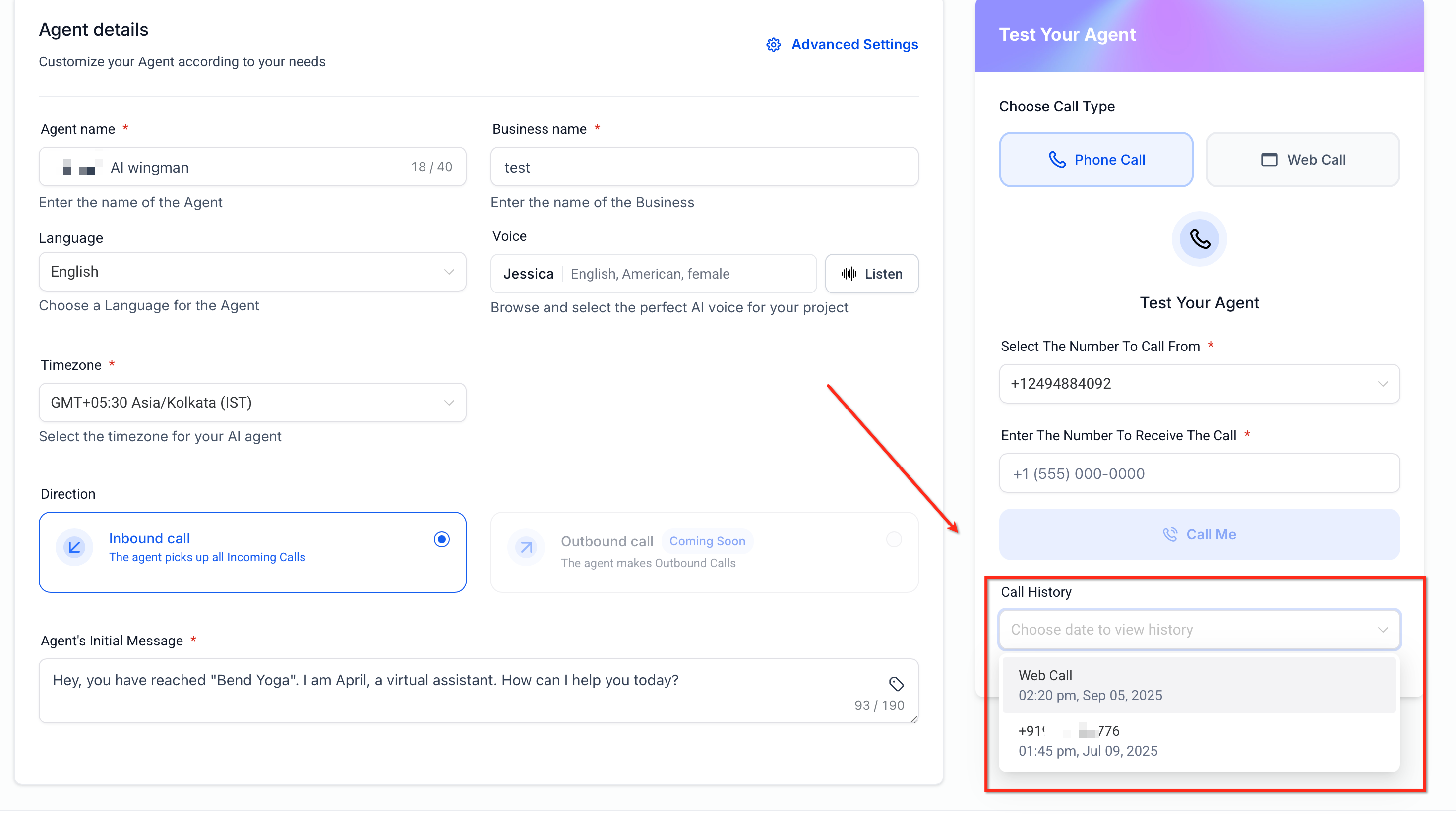
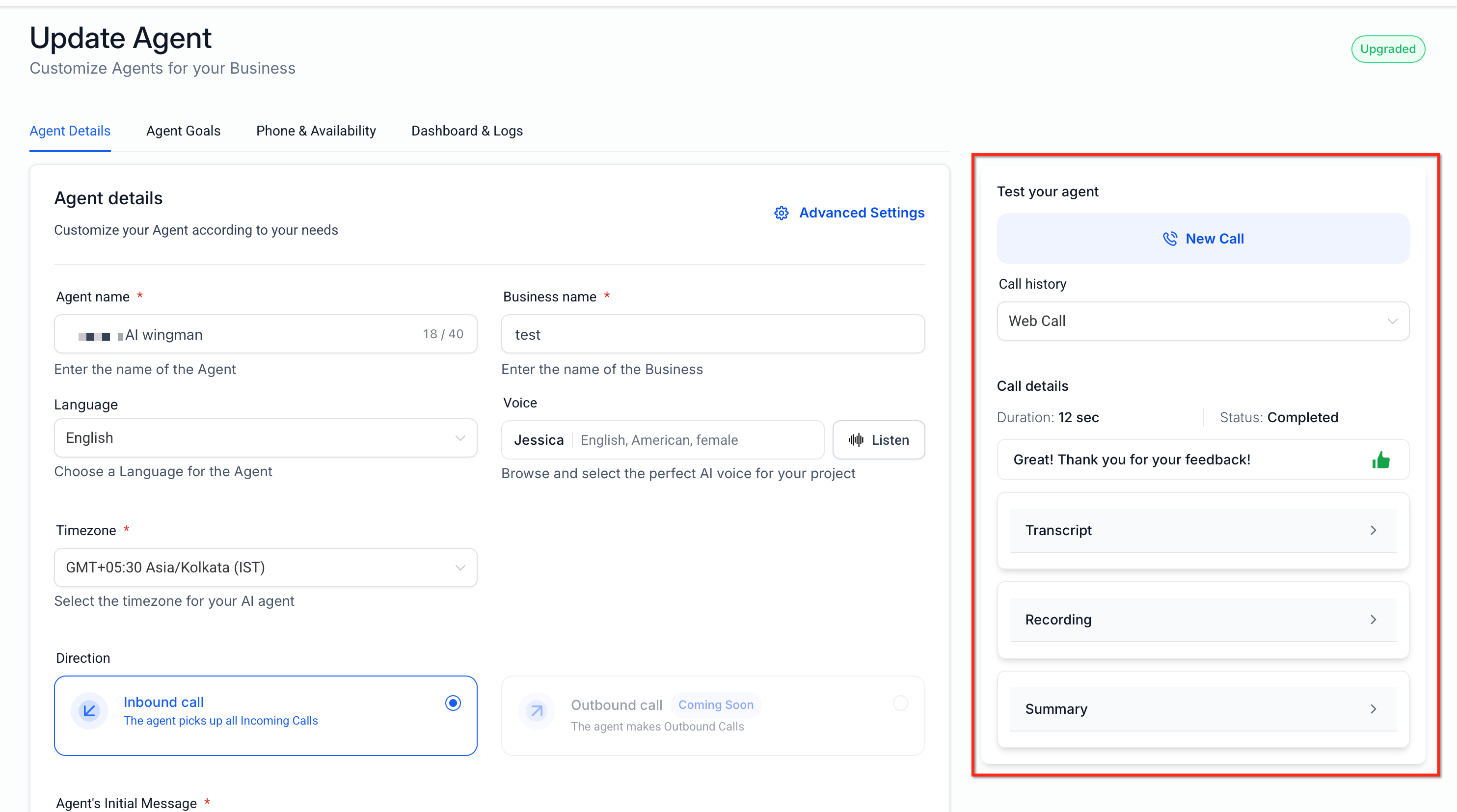
| Field | Description |
|---|---|
| Scenario | Indicates whether the call was Inbound or Outbound, allowing you to compare behaviors across different call types. |
| Duration | Shows the total connected time. Very short durations may indicate early hang-ups or permission issues. |
| Call Status | Displays the final outcome, such as Completed, Missed, Failed, or Canceled. |
| Transcript of the Conversation | Provides the full conversation text for easy review and prompt refinement. |
| Call Recording Playback | Offers audio playback (if available) to assess voice quality, pacing, and tone. |
| Caller Identity | For Web Calls, the session is mapped to the logged-in user’s contact. For Phone Calls, it displays the dialed destination number. |
| Call Summary | An auto-generated recap of the conversation and its outcomes for quick analysis. |
Frequently Asked Questions
- Q: Is purchasing a phone number necessary for testing?
- A: Web Call: No number is needed. Phone Call: This method uses your existing telephony setup, and standard rates may apply.
- Q: Are test calls included in my analytics?
- A: No. Test calls are excluded from all dashboard analytics and performance metrics.
- Q: Can I see transcripts and recordings for trial calls?
- A: Yes. You can access transcripts, recordings, and call summaries for all test calls via Call History or the Dashboards & Logs section.
- Q: Can I test call transfers?
- A: Web Call: This feature is not supported. Phone Call: Call transfers will function according to your agent's configuration and your telephony setup.
- Q: Who is identified as the caller in a Web Call?
- A: The logged-in user’s contact is automatically used as the caller identity for the trial session.
- Q: Which testing method should I use?
- A: Use Web Call for quick iterations without number setup. Use Phone Call to validate the complete, end-to-end telephony experience.
- Q: Do test calls impact my analytics?
- A: No, test calls are designed for quality assurance and are always excluded from your analytics.
